

With an HDMI connection, a suitable TV box and the right audio solution, you can give a new task to the monitor you are not using. The shopping list changes depending on the features of the screen.
You can turn a monitor with HDMI input into a screen where you can watch movies, TV series and live broadcasts over the internet by connecting a media player. If the monitor also has speakers, your job is quite easy. For models that do not have a sound system, it is necessary to determine where you will get the sound from before purchasing.
This solution especially appeals to those who want to set up a second viewing area in the study room or use the screen at hand. However, the same shopping list does not apply to every old monitor. While evaluating the speaker you are not using and the cable that comes in the box reduces the total cost, unnecessary converters can increase both costs and connection problems.
Check the monitor’s connections first
Start shopping by looking behind the screen. Basic checkpoints include HDMI input, native resolution, internal speaker, and 3.5mm audio output if available. Make sure that the connection with the headphone icon is actually an output. The user manual, which you will find with the model number of the monitor, helps you distinguish similar audio inputs and outputs.
HDMI carries sound along with the image, but this does not mean that the monitor can produce sound. If the display doesn’t have a speaker or audio output, streaming audio from the media player to a Bluetooth speaker or headset is an option. Don’t assume that a regular converter will work on a DisplayPort-only monitor either. As seen in UGREEN’s direction description, the cable connecting the DisplayPort source to the HDMI display does not work in reverse from the TV box with HDMI output to the DisplayPort monitor.
Start with TV box on Full HD monitor with speakers
The first product to look for for a monitor with 1080p resolution, HDMI input and speakers is Xiaomi TV Box S third generation. The Google TV interface and remote let you access apps without keeping the computer turned on. According to Xiaomi’s technical specifications page, the device offers up to 60 frames per second output at 4K resolution and an HDMI cable is included in the box. Therefore, there is no need to purchase additional cables initially.
The 4K label does not upscale your Full HD monitor’s resolution. You use the box with the 1080p output that the display supports. The advantage of this model is that you can continue to use the same media player when you switch to a compatible 4K display in the future. Check the Google TV application, availability in Türkiye and subscription terms of the service you want to watch before purchasing.
Xiaomi TV Box S (3rd Generation)
If the monitor has audio output, use wired speakers
If the monitor does not have a speaker but has a 3.5 mm audio output, an active desktop speaker such as the Logitech Z150 would be a practical solution. The sound goes from the TV box to the monitor via HDMI, and from the monitor’s audio output to the speakers. Logitech’s whitepaper confirms the Z150’s analog 3.5mm connection and included power adapter in the box. Since you can use the product’s own audio cable, there is no need to purchase a separate AUX cable.
Z150 gets its electricity from the socket via the power adapter, not from USB. If you are going to use the speaker constantly at the table, it is an advantage that it does not require charge monitoring. You can adjust the volume with the button on the right speaker. When choosing this solution, also check the monitor’s sound menu; if the headphone output volume is turned down, you may not get the level you expect from the speaker.
Xiaomi TV Box S third generation does not have analog audio output. Therefore, you cannot plug the Z150’s cable directly into the box. Do not apply the connection recommendations of old Mi Box models to this generation.
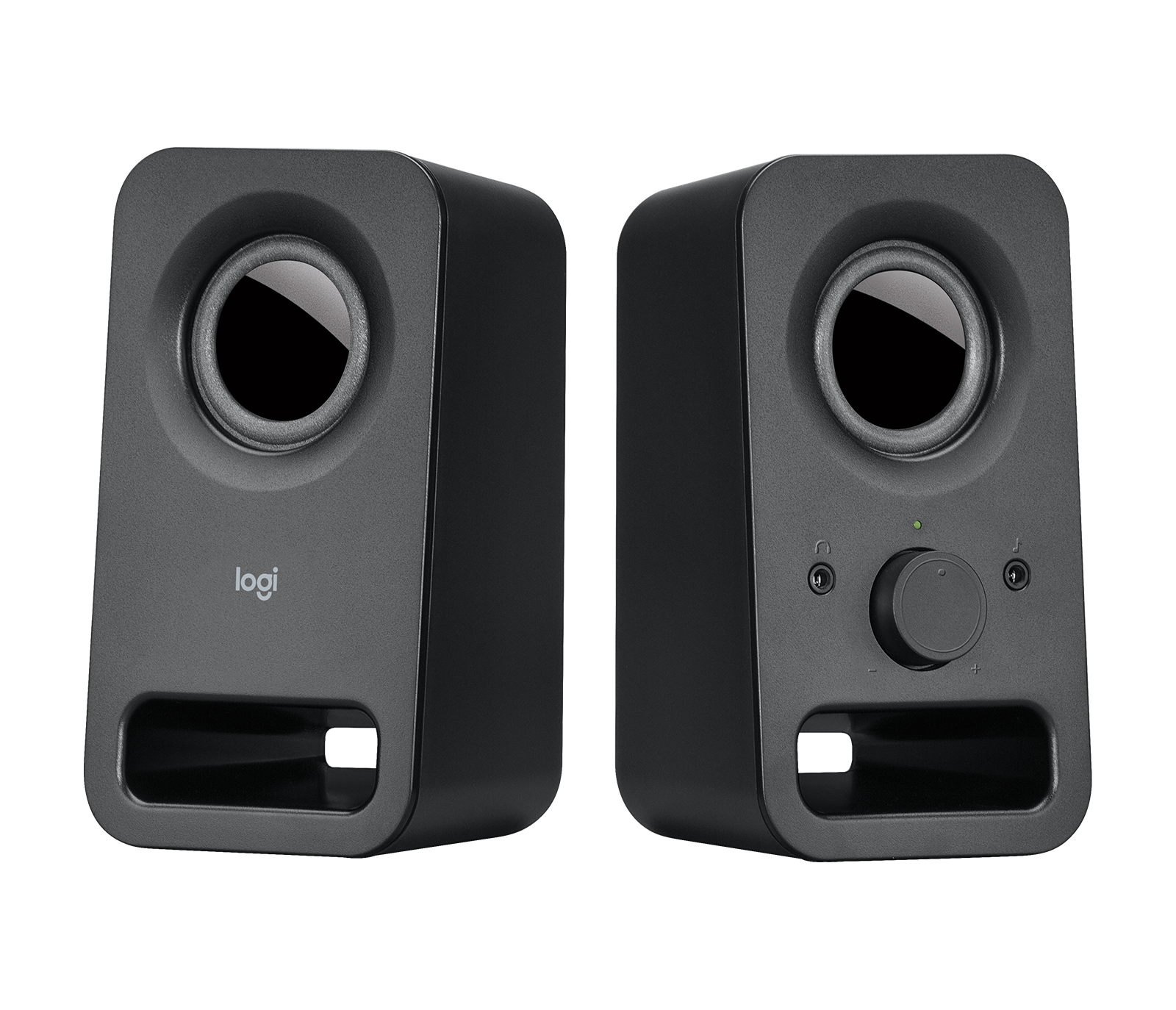
Logitech Z150 black desktop speaker
Consider the Bluetooth option on a monitor without audio output
If the monitor does not have either a speaker or headphone output, you can pair a Bluetooth speaker, such as the JBL GO Essential 2, directly with the TV box. So the monitor only displays the image, the box transmits the sound wirelessly to the speaker. You must do the pairing from the media player’s Bluetooth or remote and accessory settings, not from the monitor’s menu.
JBL GO Essential 2 is a small and battery-powered model. This structure may be useful for those who want to use it in other rooms, but you should take charge monitoring into account for continuous desktop use. JBL’s product documentation specifies the USB-C charging connection, but the package does not include a charging cable or adapter. If you do not have the appropriate cable and USB power supply, add these to the cost. Don’t assume you’ll use the USB-C connection to get wired audio from the TV box.
It is useful to open a movie on the Bluetooth connection and check the harmony of the mouth movements and the sound. Don’t consider this option a lag-free audio solution, as latency can vary across devices and app. If you already have a Bluetooth speaker or headset, trying it out first may be more economical than buying a new product.
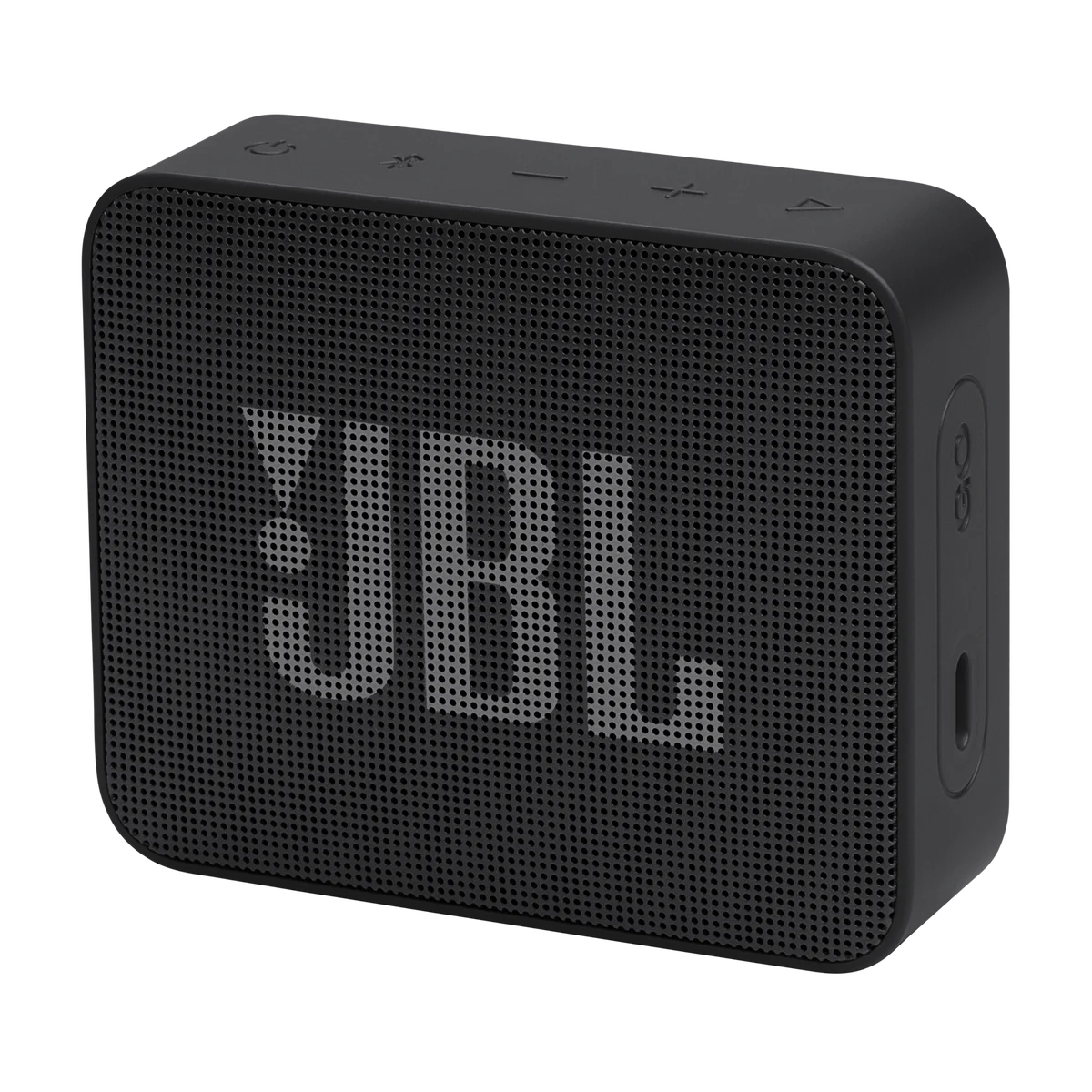
JBL GO Essential 2 black Bluetooth speaker
Don’t just look at the features of the box on a 4K monitor
If you have a 4K monitor, check what resolution and refresh rate the display’s HDMI input supports. Even if the panel is 4K, not every input may offer the same features. Copy protection compatibility is also important for high-resolution playback in paid services. For example, the 4K guide prepared by Google for its own broadcast devices requires HDCP 2.2 support on the HDMI side, appropriate content and subscription.
Also consider HDR support. Even though the box supports Dolby Vision or HDR10+, it does not provide the same feature to a monitor that does not support these formats. Since the color and brightness capabilities of the screen will not change, do not think that you will reach the HDR experience on televisions by purchasing a media player alone.
If the cable included in Xiaomi’s box is the length you need, use it first. If you need to buy a new cable, choose a model that is clearly stated to carry 4K and 60 Hz signals. Paying more just because it says 8K on the packaging will not by itself improve the image in this setup.
Sharing the same monitor with the computer and completing the installation
If the monitor has both DisplayPort and HDMI inputs, it may work to connect the computer to DisplayPort and the TV box to HDMI. This way, instead of plugging and unplugging cables, you can change the source from the monitor’s input menu. If there is only one suitable input for two devices, an HDMI switcher may be considered. However, the splitter that distributes a single source to two screens and the switcher that directs one of the two sources to the screen are not the same product. It is also necessary to check the resolution, HDR and HDCP support of the intervening device.
You can follow this order for the first installation:
- Connect the TV box to the monitor via HDMI and plug in its power adapter.
- Select the relevant HDMI input from the monitor’s menu.
- Complete the network and account setup with the remote control and install system updates.
- In the display settings, select the resolution supported by the monitor. Then check the monitor speaker, AUX connection or Bluetooth audio output.
- Open a video in the application you will use and try the image, sound and control behavior together.
It is not possible to turn the monitor on and off with the remote control of the TV box in all models. This function depends on the control support of the display and device. The role of HDMI-CEC and infrared compatibility is also seen in Apple’s announcement of remote control support. If your monitor does not offer the relevant feature, you may need to use the power button separately.
Satellite broadcast and very old screens change the cost calculation
Connecting a media player does not add an antenna or satellite receiver to the monitor. To watch the broadcast from the dish, a receiver with HDMI output suitable for the satellite broadcast type is required. Live channels in internet applications are a different option and their availability depends on the service, region and subscription. Don’t shop under the assumption that you can connect the antenna cable directly to the TV box.
Evaluating a monitor with only VGA input may require more parts. The initial economical idea can become expensive when you add video converter, separate audio solution and additional power connections. Compare the total of the TV box, speakers and essential accessories to a similar sized television.
In Amazon.com.tr offers checked on October 25, 2026, Xiaomi TV Box S third generation was at 5,199 TL, Logitech Z150 was at 1,930 TL, and JBL GO Essential 2 was at 1,699 TL. Accordingly, using the existing sound system costs 5,199 TL, wired installation with Z150 costs 7,129 TL, and Bluetooth installation with JBL costs 6,898 TL, excluding the need for charging accessories, if any. Price and seller information may change.
An existing screen with HDMI input, sound decoding, and the display of which you are happy with is a good start. If you are going to complete many missing parts from scratch, the new television may offer a more complete use.