

When you turn your iPhone Duo to landscape position, do you ever turn down the volume when you want to turn it up? When holding the foldable phone in different ways, the position of the buttons changes relative to your hand. You can reduce this confusion by adjusting the volume keys according to the screen orientation. To do this, simply turn off the fixed task operation of the buttons in Settings. However, when you lock the orientation of the screen, the result changes. You can turn the setting on or off with the steps below, then check how your chosen layout works.
Apple also describes this option, described by MacRumors, in its current support document explaining the buttons of the iPhone Duo. These steps are for iPhone Duo with iOS 27.
If you frequently use the phone horizontally, dynamic volume keys may make your work easier. If you are used to a fixed layout, you can also choose to have each key do the same thing. The directions below are valid for interfaces written from left to right, such as Turkish; In languages written from right to left, the functions of the right and left keys are reversed.
Adjust iPhone Duo volume keys according to screen orientation
To match the function of the volume buttons to the orientation of the screen on iPhone Duo, follow these steps.
- 1
Open the Sound & Haptics section
Open Settings and enter Sound & Haptics.
- 2
Turn off fixed location option
Turn off the Fixed Position Volume Controls option. Thus, when you turn the phone, the button at the top or on the right increases the volume, and the button at the bottom or on the left decreases the sound.
- 3
Check Direction Lock
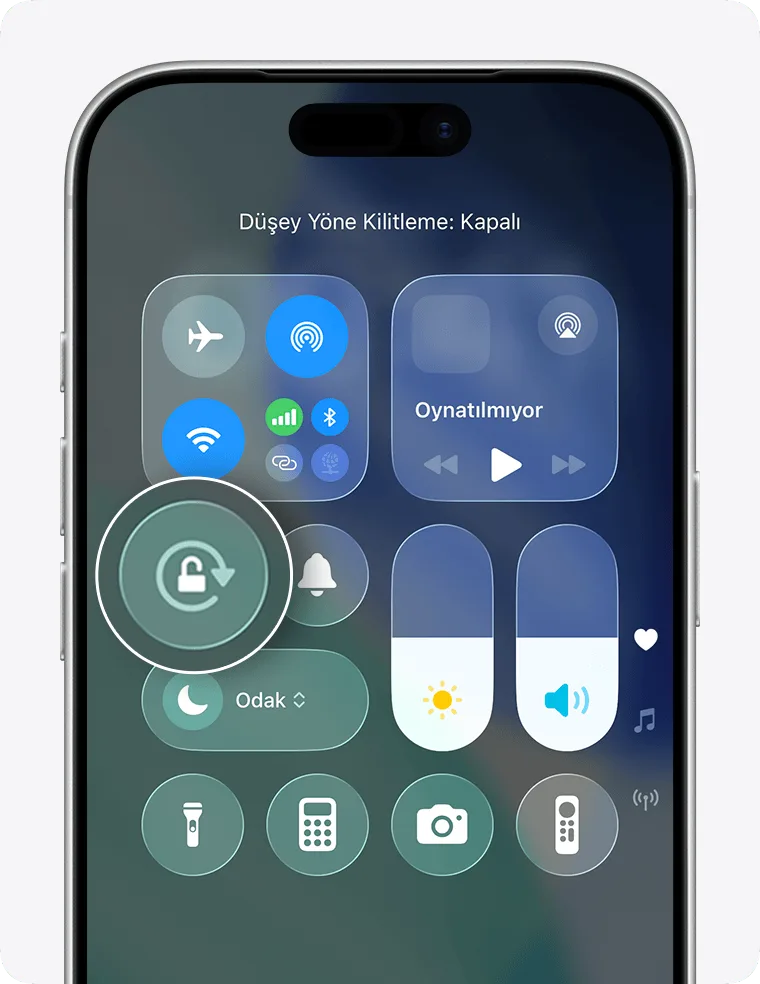
Open Control Center by swiping down from the top-right corner of the screen and check Orientation Lock. If unlocked, the volume keys follow the direction in which the screen is locked rather than the direction you turn the phone in your hand. If you want the screen to rotate, turn off the lock. Image: Turkish Control Center example shared by Apple for iPhone 17 Pro and iOS 26.
- 4
Check the result and undo if necessary
Hold the phone in portrait and landscape orientation in an app that can rotate the screen. Briefly press the buttons and watch the volume indicator on the screen. If you prefer the old layout, go back to Settings > Sound & Haptics and turn on Fixed Position Volume Controls again; so each key maintains the same function even if the orientation of the screen changes.
If the screen does not rotate, check the app before the volume keys
After turning off Portrait Lock, return to the app and turn the phone sideways. Apple’s Turkish screen rotation guide reminds us that some applications do not support landscape view. If the screen remains in the same orientation, check again in an app that supports rotation, such as Safari.
Replace with Buttons option doesn’t do the same job
Don’t confuse this setting with the Toggle with Buttons switch on the Sound & Haptics page. This option, which Apple explains in its Turkish volume guide, determines whether you can change the ringer and alert volume with physical buttons. It does not select the key layout depending on the screen orientation. When playing video or music, you adjust the ambient sound with the buttons. You can also turn off the Change with Buttons option if you want to keep the ringtone constant.
When you don’t want to use physical buttons, you can drag the volume slider in Control Center. While getting used to the new layout, following the volume indicator on the screen makes it easier to understand which button does which job.
Frequently asked questions about iPhone Duo volume keys
Can I return to the old order? Yes. Turn on the Fixed Position Volume Controls option again in Sound & Haptics. This way you keep the function of the keys constant.
What should I check if I don’t see the setting? This setting is located in Settings > Sound & Haptics on iPhone Duo. If you are using another iPhone model, you may not see the same option.
Can Direction Lock remain on? Yes. In this case, the buttons follow the direction in which the screen is locked. Turning the phone alone does not change the function of the keys.
To learn more about how to use iPhone Duo in more detail, you can also take a look at the article where we explain its horizontal usage features.