

It is now possible to listen to a meeting conducted in a foreign language in Turkish on Google Meet. With the update announced on October 22, 2026, Google expands voice translation to 63 languages, including Turkish. However, having the appropriate subscription does not necessarily mean that you will see the new menu today. The distribution schedule, the account organizing the meeting, and the preferences of the participants also come into play.
Especially for those who meet with business partners abroad, it is useful to check the account conditions first. Then, in a short trial meeting, you can separately check the microphone, the language heard, and the other party’s translation permission. This guide is based on the new interface announced by Google in its current documentation.
Which subscriptions include Google Meet voice translation?
According to Google’s official announcement, Google AI Pro and Ultra, Workspace Business Standard and Plus, Enterprise Standard and Plus, Frontline Plus, AI Pro for Education, and AI Expanded Access and AI Ultra Access are supported. For scheduled meetings, the organizer must have the appropriate subscription. In direct one-on-one calls, it is sufficient for one of the two people to have a suitable plan.
There is a 90-minute limit per meeting on basic eligible Workspace plans and Google AI Pro. For Google AI Ultra, AI Expanded Access and AI Ultra Access, this time increases to eight hours. Therefore, if you are planning a long training or workshop, you should take translation time into account as well as the total duration of the meeting.
How to open Turkish voice translation on the computer?
Turkish is among the supported languages on the current Google Meet help page. If the new interface has arrived in your account, follow this path on the computer. We also added English button names, you may encounter them depending on the interface language.
- Join the meeting and hover over the captions and translation button in the bottom toolbar.
- Translate the speech, that is, turn on the “Translate speech” option.
- When you first use it, select Turkish as the language you want to hear the translations in and click “Next”.
- If you want your own speech to be translated for other participants, allow it with the “Translate me” option.
Allowing your own voice to be translated by listening preference is a separate process. The other party must also turn on voice translation. The translation indicator on the screen indicates that you are listening to someone’s speech translated or that your speech is translated. To stop your own voice from being translated, you can use the “Don’t translate me” option in the speech translation settings.
Where is the menu located on the phone?
In Android and iPhone applications, the subtitles and translation section is accessed from the More options menu at the bottom right of the meeting. When you first use it, you determine the listening language and allow yourself to speak. If you see the old menu on the phone, update the Meet app first.
The new system automatically detects the spoken language. Thus, it is not necessary to connect the entire meeting to a single language pair, as in the old version. However, the Turkish help page still showed the old flow during check. If your screen doesn’t match the help text, check the deployment status instead of wasting time searching for old buttons.
Check the microphone and the sound you hear
Make sure airtime audio is working before turning on translation. Google’s voice control guidelines recommend that you speak by monitoring the microphone bar before joining the meeting, then run the speaker test. If the stick does not move, you may have selected the wrong input device. Changing the connection of the headset may also affect the selected device. If the audio cuts out after the meeting has started, making the first check from this menu will prevent you from fiddling with irrelevant translation settings. Check the device name to avoid confusing the laptop’s microphone with the headset’s microphone.
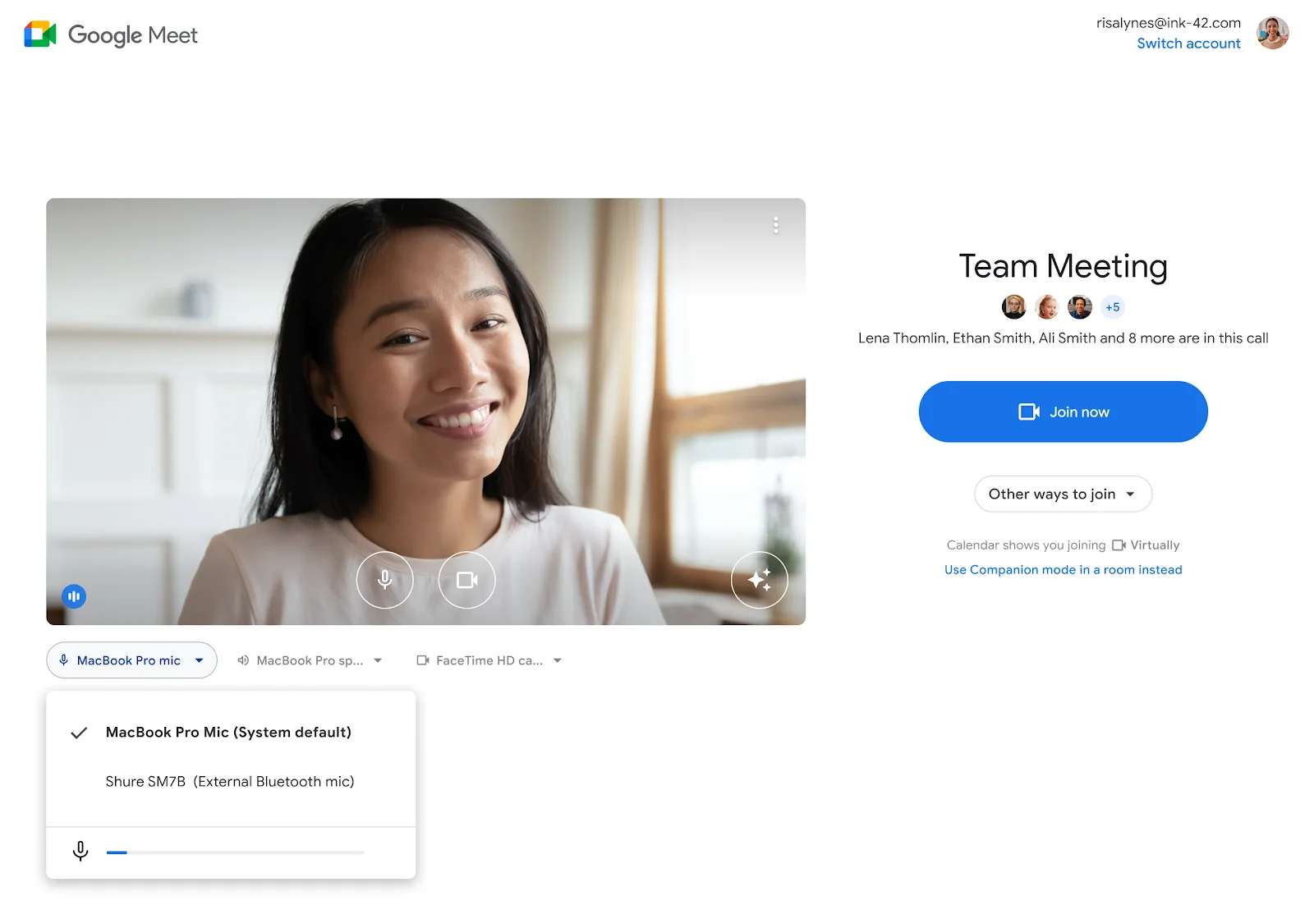
Also review the browser’s microphone permission for meet.google.com. In Windows 11, access permissions in Settings, Privacy and security, Microphone may also have an impact. As Microsoft explains, application access and the permission given to the website should be checked together. On a Mac, the operating system’s microphone permission may also block the browser. Instead of granting permissions to unnecessary applications, only control the application you are using in the meeting.
What to do if the Turkish option does not appear?
Distribution to organizations on the rapid release schedule began on October 22, with an anticipated duration of one to three days. For organizations on the planned release calendar, the start date is November 2, and the distribution period can be up to 15 days. Therefore, the fact that the option does not appear on October 24 is not considered a malfunction on its own. You can ask your institution administrator which calendar your account is on.
First check the organizer’s subscription, then check the organization’s Meet permissions. Regional and age restrictions may also affect access. Based on Turkish support, do not assume that every Turkish account is opened at the same time. If only one person’s speech is not being translated, look for that person’s translation permission.
If you don’t yet have access to audio translation, translation subtitles may be a separate option. In supported accounts, you can select the meeting language from More options, Settings, Subtitles, turn on translation subtitles, and select the target language as Turkish. This process does not voice the speech in Turkish, but shows Turkish text on the screen.
For first use, start with a short, casual conversation. For example, going through the time and agenda of the meeting makes it easier to understand whether the translation you hear has the result you expected. It is also a good habit to write amounts, dates, and important decisions in the chat area. Use translation as an aid that makes it easier to follow the conversation, not as a decision-making tool instead of conversation.