

After upgrading to iOS 27, you may have noticed that your iPhone’s battery is draining faster than before. Especially in the first days after major iOS updates, users may encounter problems such as the device overheating, the battery percentage dropping faster than expected even when the screen is off, or reaching the end of the day with less charge. Apple also states that some processes continue in the background after the software update and that these may temporarily affect battery life and thermal performance. Therefore, if you are experiencing iOS 27 battery problems, it may be better to check a few settings and the battery statistics offered by iOS instead of immediately thinking about battery replacement. In this guide, you can find step by step how to find the source of the problem and what settings you can change to reduce battery consumption.
1. Wait a few days for iOS 27 battery issue
If you have just installed iOS 27, you should not evaluate battery consumption by looking at the few hours of usage immediately after the update. Apple clearly states that certain system tasks may continue to run in the background after a software update. Indexing files, editing system data, and other processes related to updating can increase both processor usage and energy consumption during this period. As a result, the iPhone may run hotter than usual and the battery percentage may decrease faster. In this case, Apple recommends waiting a few days and then checking the battery life again.
Open the Settings app Battery If you see a Statistics saying “iOS Update in Progress” when you enter the section, it means that the background processes have not been completed yet. After this statement disappears, it will be better to compare the daily battery consumption again. Similarly, the “Device Setup In Progress” message indicates that the phone is continuing with the setup process.
2. Check which app is draining battery in iOS 27
If the problem persists after a few days Settings > Battery Follow your path. In iOS 27, the Daily Usage section helps you compare your consumption today with your usage in the previous seven days. Here the system can show whether you are consuming more, less or a similar amount of battery than normal. So instead of just looking at the battery percentage, you can see if there is actually a change in consumption.
It is also necessary to look at the application and system activity section at the bottom of the same screen. Next to an app Background Activity If you see the phrase, the application may be consuming energy even when you are not using it directly. The “No Mobile Coverage and Low Signal” warning indicates that the phone is constantly searching for a base station and therefore uses too much energy. Frequent notifications waking up the screen can also increase consumption. Apple’s Battery screen allows you to see these details on an app-by-app basis.
3. Turn on Adaptive Power to reduce battery drain in iOS 27
If you’re using a supported iPhone Adaptive Power This feature may be one of the most practical ways to reduce daily consumption. Settings > Battery > Power Mode You can check the feature by following the path. Adaptive Power detects days when you’re using more energy than usual and makes small changes to screen brightness, background activity, and some performance settings. It can also activate Low Power Mode when the battery level reaches 20 percent.
According to Apple’s current support document, Adaptive Power can be used on iPhone 18 Pro models, iPhone 17 series, iPhone Air, iPhone 16 series, iPhone 15 Pro and iPhone 15 Pro Max on iOS 26 or newer. Since the behavior of the feature may vary depending on the model, it will be sufficient to check whether the option is available in the Power Mode menu.
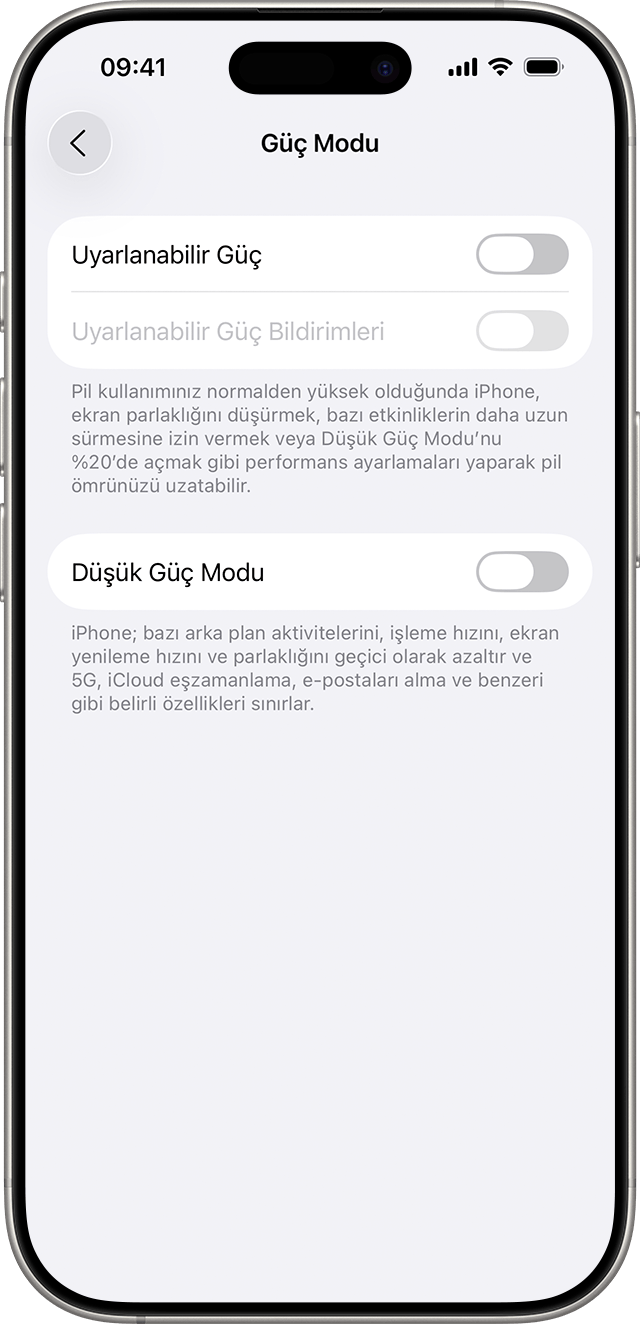
4. Use Low Power Mode when needed in iOS 27
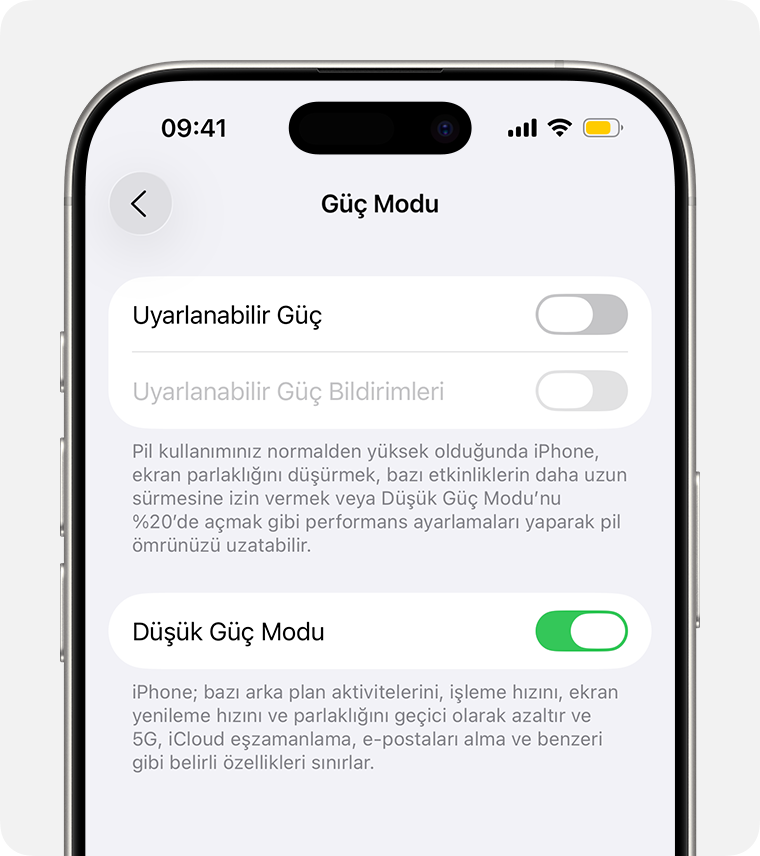
If you think your battery won’t last the day, Low Power Mode can provide more significant savings. On iPhone 15 and later models Settings > Battery > Power Mode > Low Power Mode You can follow the path. On older models, the option is located directly in the Battery menu. You can also turn on Low Power Mode via Control Center.
This mode doesn’t just reduce the screen brightness. Apple states that Low Power Mode limits background app refreshing, automatic downloads, email retrievals, and some visual effects. Limiting the screen refresh rate to 60 Hz on iPhone models with ProMotion displays also helps reduce energy consumption. Low Power Mode automatically turns off when you charge the phone to 80 percent or higher.
5. Check 5G and Wi-Fi usage when experiencing iOS 27 battery issue
The quality of your mobile connection can affect battery life more than you think. Especially in poor coverage, consumption increases as the iPhone constantly tries to find a strong cellular connection. Apple recommends using Wi-Fi and cellular whenever possible. 5G Automatic recommends you to choose the option. This mode can reduce energy consumption by switching the phone to LTE connection in cases where 5G does not provide a significant advantage.
on iPhone Settings > Cellular > Cellular Data Options > Voice & Data You can check the 5G Automatic option by following the path. If you spend a long time during the day in the subway, parking lot, or indoor areas with poor coverage, it will also be useful to look at the low signal statistic on the Battery screen.
6. Also check battery health after iOS 27
If the battery life is still noticeably poor after a few days and you’ve checked the high-draining apps, you can examine the battery health. On iPhone 15 and later models Settings > Battery > Battery Health Follow your path. You can get the same information on iPhone 14 and older models. Battery Health and Charging You can find it in the section.
If you see a “Service” warning in the battery health section, the problem may not be caused only by iOS 27. Apple recommends that you consider replacing the battery in this case. Therefore, it is necessary to take into account the physical battery wear that coincides with the software update.
Frequently asked questions
Frequently Asked Questions
Is it normal for the battery to drain quickly after the iOS 27 update?
Battery consumption may be higher than normal for a few days as certain background tasks continue to run immediately after the update. If battery life seems low after the update, Apple recommends waiting a few days and checking again.
What does the “iOS Update in Progress” warning mean?
This statement shows that the iPhone continues to complete some update-related processes in the background. Battery consumption and device temperature may increase temporarily while operations are in progress.
Are Adaptive Power and Low Power Mode the same thing?
No. Adaptive Power automatically makes minor performance and energy consumption adjustments as needed. Low Power Mode, on the other hand, imposes more significant limitations on background processes, screen refresh rate and various features.
Is it necessary to replace the battery immediately after iOS 27?
It’s usually better to wait a few days first, examine app and system consumption on the Battery screen, and check battery health. If there is a “Service” warning in the Battery Health section, physical battery replacement may also be considered.