

It takes a few seconds to open your favorite song on Spotify. However, the application’s default preferences may not always match the music you listen to, your headphones and your internet package. You need to look at different options if you need to readjust the volume when moving from one track to another, if songs you don’t want start after your list is finished, or if sleep music affects your recommendations. Spotify settings You can adjust sound quality, mobile data consumption and personalization separately via . This guide, based on iPhone and Android applications, explains seven options you can use in Türkiye; The screenshots show the Turkish Spotify interface on the iPhone 18 Pro.
First, by tapping your profile photo on Spotify Settings Open the section. Some app versions show this menu under the name Settings & privacy. You can find most of the audio-related options under the Play heading, and quality preferences in the Media quality section. Therefore, if the menu names are different in the version you are using, look at the options in the relevant title.
Instead of changing all the settings at once, start with the situation that bothers you. For example, check normalization for sound differences between songs, quality and download preferences for excessive internet consumption. Then compare a few songs you know well by listening to them with the same headphones. This way, you can more easily understand which change benefits you.
Your membership type also affects the options you see. Spotify offers volume normalization and volume switching features within the Premium scope. Additionally, Premium is required to download music and use very high sound quality. The screenshots below show the available preferences; You don’t need to leave every switch that appears open in the same position.
Customize Spotify settings in 7 steps
- 1
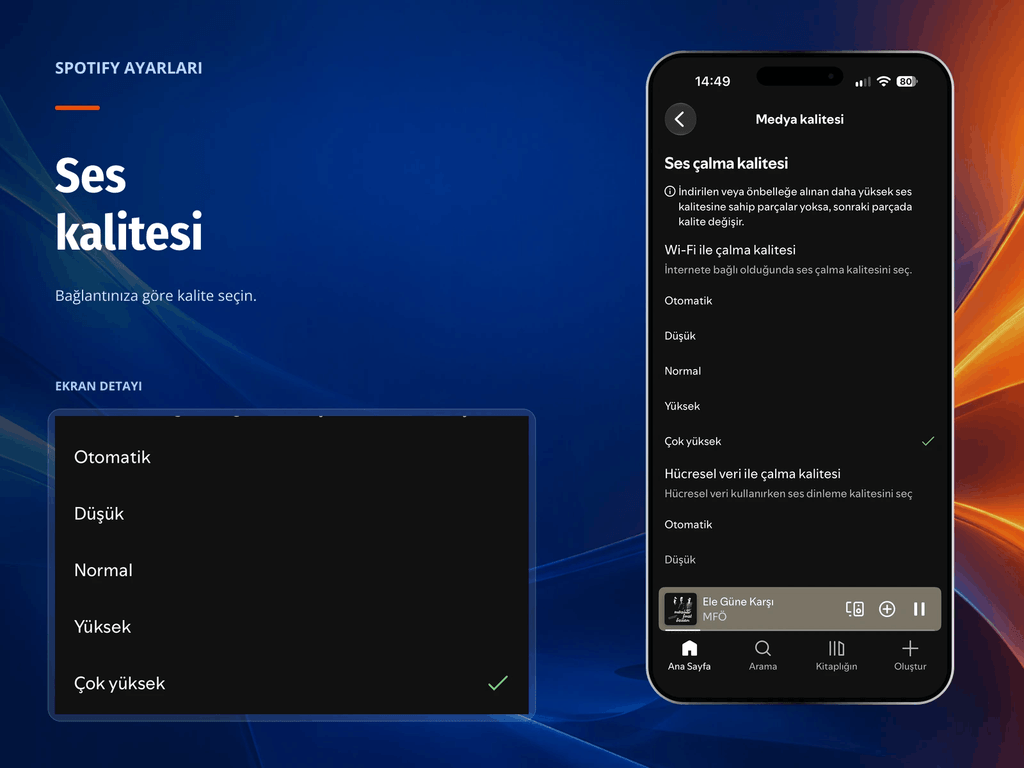
Choose sound quality according to your connection
Settings > Media quality Follow the path and find the Wi-Fi playback quality section. At home or on a stable Wi-Fi network if you have a Premium account very high seçeneğini deneyebilirsiniz. Spotify states a value of approximately 320 kbit/s for this compressed quality option. Adjust the cellular data playback quality separately according to your internet package. For example, on a mobile connection, you can start with Auto or High and track consumption. Also take into account that when you increase the download quality, the files will take up more space on the phone. Spotify’s audio quality description compares options by connection and subscription type.
- 2
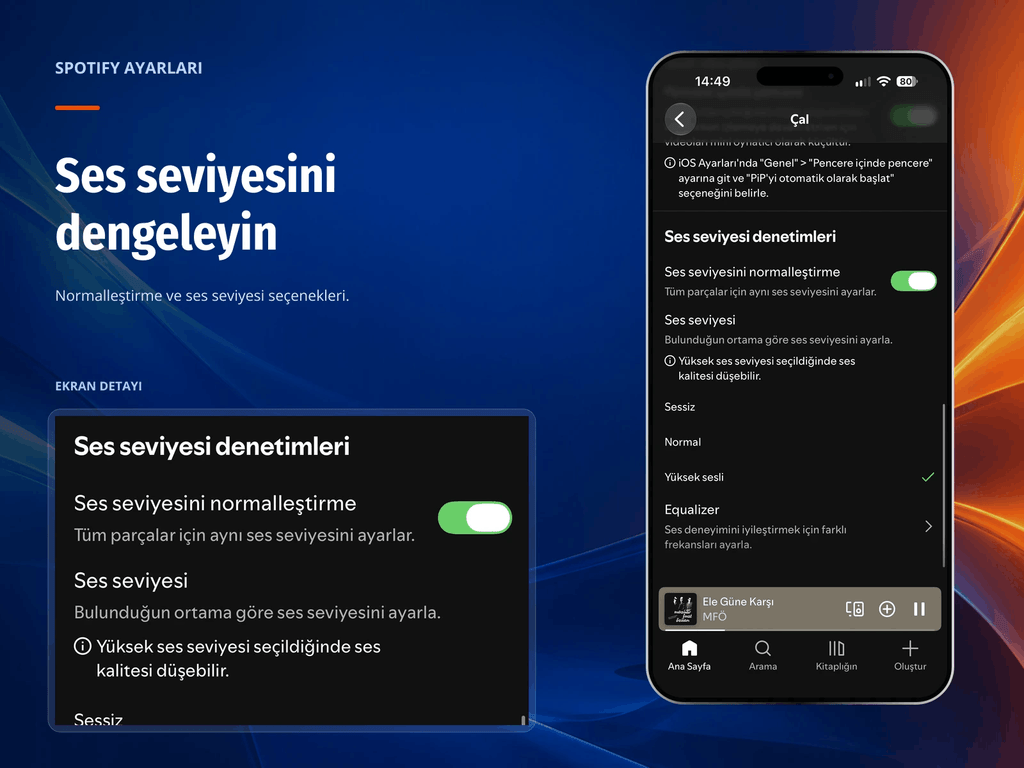
Reduce volume differences between songs with normalization
Settings > Play In the section, scroll down to Volume controls. You can reduce the difference in loudness between different tracks by turning on the switch. In the Volume section just below, try the Normal option to start with. In the screenshot, the Loud option is selected, but it would not be right to recommend this option for everyone. Spotify also states in the application that sound quality may decrease at high levels. Compare Normal to Loud, especially in a quiet environment, and listen for the difference between quiet and powerful parts of the track. Normalization balances the loudness of tracks; It does not convert the audio file to a higher quality format.
- 3
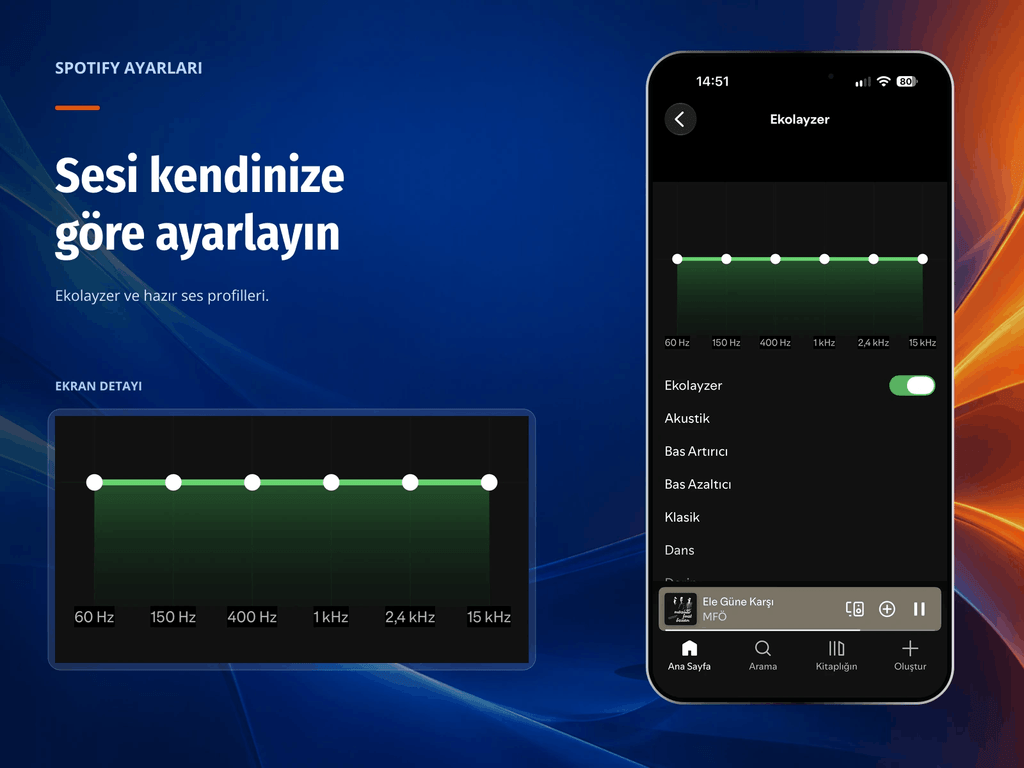
Customize the equalizer to your headphones
If the bass covers the vocals or the treble stands out too much equalizer You can change the balance of the sound via . On iPhone, tap the Equalizer row in Settings > Playback. On the Equalizer screen that opens, you can try ready-made profiles or change the frequency points with small movements. Listen to the flat frequency line first, then compare the same track with your chosen profile. Instead of looking for one ideal curve for all headphones, look at the intelligibility of vocals and whether the bass covers up other sounds. On Android, if you use the device’s built-in equalizer, the changes may also affect the sound of other apps. Spotify’s equalizer guide also explains this device difference.
- 4
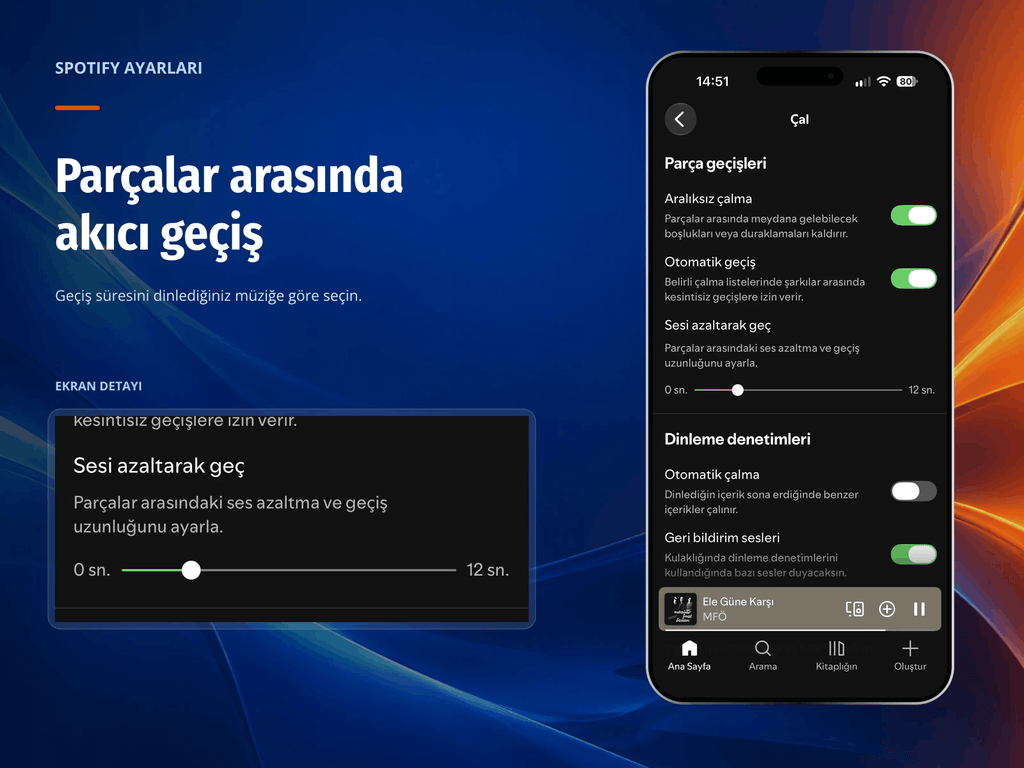
Adjust song transitions according to the content you’re listening to
In the section, find the Volume down slider. If you have a Premium account, you can lower the volume of the current track and increase the volume of the next track with this setting. Start the experiment with a short passage of a few seconds, then listen to the result in different songs. In lively charts, this choice can keep the music flowing; On the other hand, when listening to an album from beginning to end, you may want to preserve the beginnings and endings of the tracks. In such cases, make a comparison by moving the slider to zero. Also consider the Continuous playback and Automatic switching options on the same screen separately from the Volume down setting. Spotify’s guide to track transitions explains the different functions of these options.
- 5
Control the music to continue when the list ends
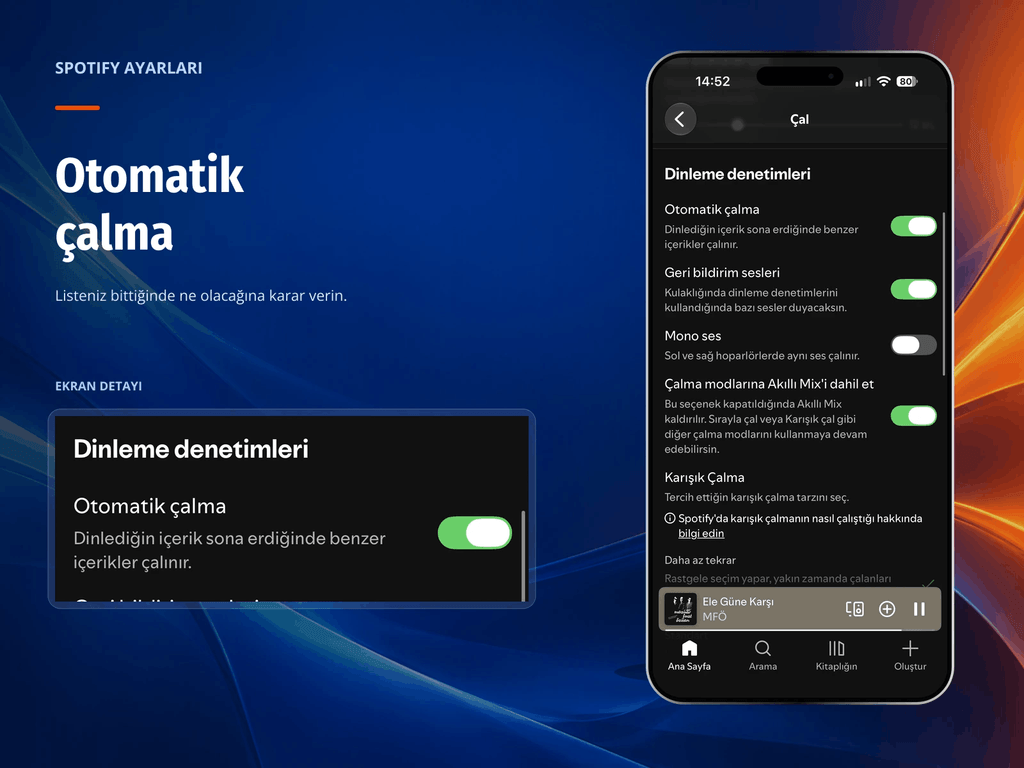
If you don’t want Spotify to play similar songs after your selected album or playlist is completed auto play Turn off the option. On iPhone, open Settings > Playback and scroll down to Listening controls. Change your preference by tapping the autoplay switch. This setting determines whether you can continue with similar content when the content you are listening to ends. In the screenshot, the switch appears to be on; If you want the music to stop when the list ends, turn it off. On the other hand, if you like to have similar songs playing in the background while working, you can leave it on. Spotify also offers a separate setting in its desktop app for autoplay.
- 6
Limit downloads and video consumption with mobile data
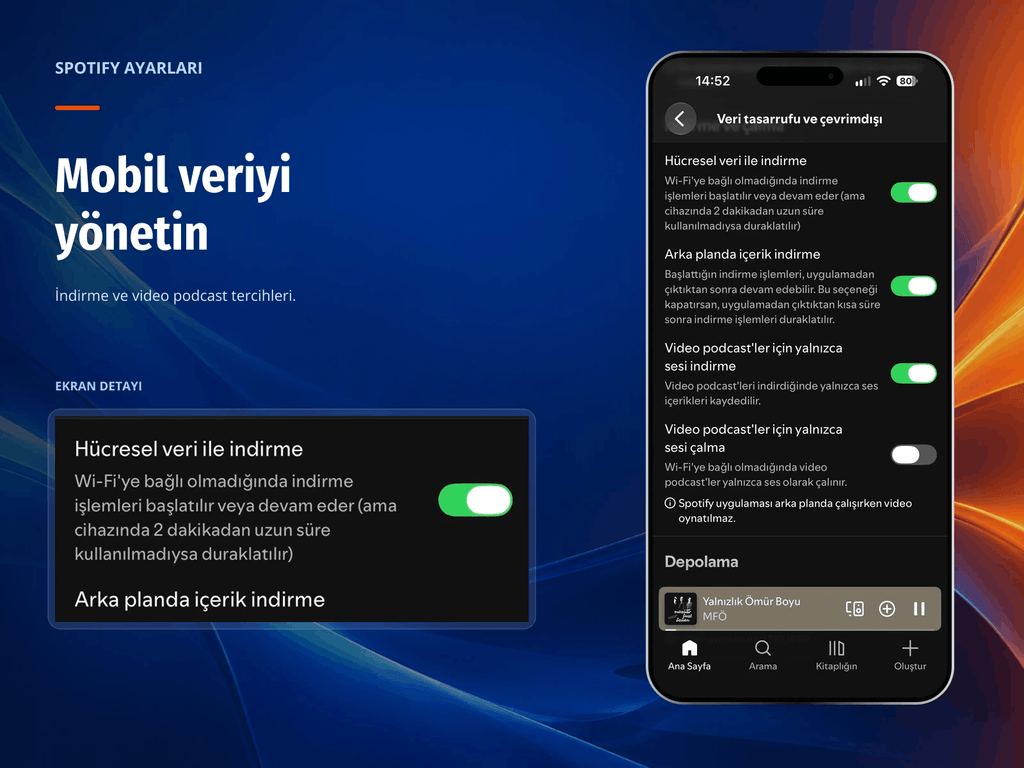
Open the section. If you don’t want downloads to consume your mobile internet package Turn off the option. In the screenshot, this switch is on, so you only need to change the preference to download over Wi-Fi. If you have a premium account, you can download the music you listen to frequently and listen to it offline. Ayrıca video podcast’leri yalnızca dinliyorsanız Video podcast’ler için yalnızca sesi indirme ve yalnızca sesi çalma seçeneklerini ayrı ayrı kontrol edin. Data saver mode on the main Settings screen also helps reduce consumption, but can reduce audio quality. Spotify’s internet and data usage guide evaluates these preferences together.
- 7
Reduce the influence of sleep and focus lists on recommendations
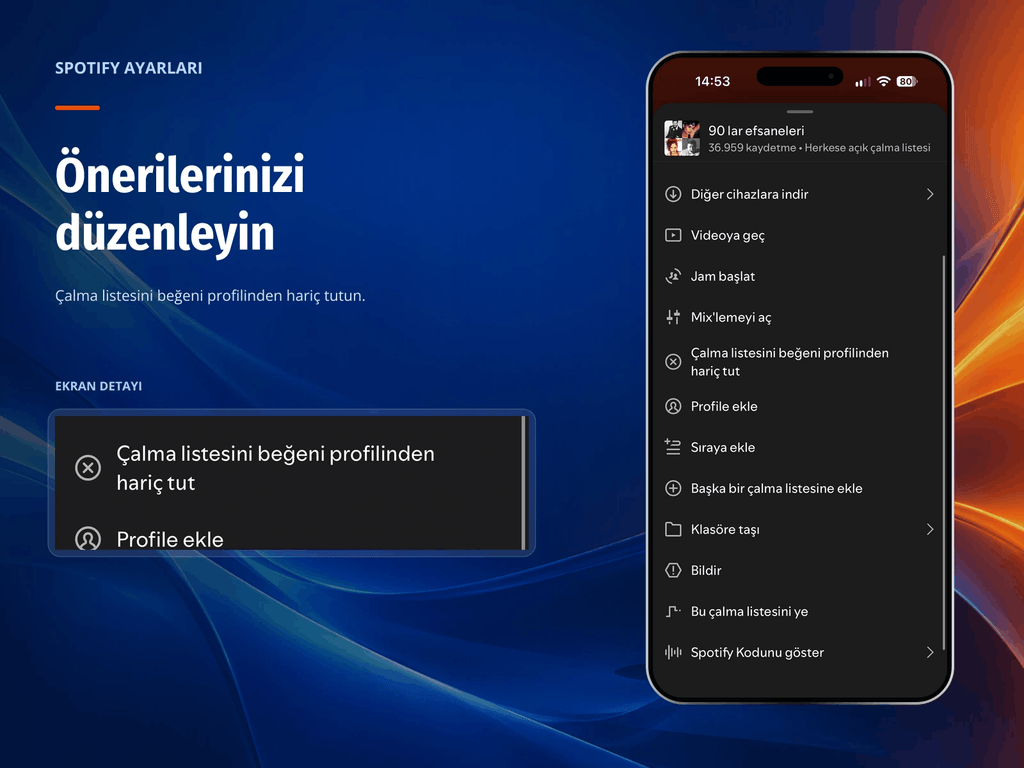
Not every content you listen to may represent your daily music taste. For sleep sounds or focus lists you have open in the background, open the relevant playlist and tap the three-dot menu. iPhone ekranında gördüğünüz Select . Spotify’s support document explains the same process under the name of exclusion from the music taste profile. This preference ensures that relevant listens have less influence on your recommendations and music taste summaries. Spotify states that the change will take effect within 48 hours, while for some recommendations such as Weekly Discovery, you can wait until the following week. Additionally, if you listen to the same song outside the list you excluded, Spotify includes this listening in your profile; The exclusion statement includes this distinction.
Frequently asked questions
No single setting will produce the same results on all headphones and connections. First choose the quality that suits your connection, then try the equalizer with minor changes. If the sound difference between songs bothers you, consider normalization separately.
Can I change the audio quality on the web version of Spotify? Spotify does not offer the option to manually change the music quality in the web player. Free and Premium accounts use different qualities across the web. For more control over quality, you can choose the mobile or desktop app.
Does turning on normalization make the sound better? Normalization aims to compensate for the difference in loudness between tracks. It does not convert the audio file to a higher quality format. Therefore, adjust the quality preference separately in the Media quality section.