

Before you lose access to your Twitch account, download the broadcasts you want to keep to your computer and request a separate copy for your account data. Video archive and personal data report go through different processes. Completing one does not mean you have backed up the other. Especially for those who have been broadcasting for a long time, it would be better to first start with the records that are about to be deleted, and then collect account information.
Due to the age restriction in Türkiye, the calendar is important for those who want to do this. According to Twitch’s statement specific to Türkiye, new users under the age of 15 cannot open an account as of October 29, 2026. The platform uses the accounts of existing users under the age of 15 living in Türkiye. in February 2027 It says it will disable it. He hasn’t announced a specific date yet. Therefore, we should not act with the assumption that all accounts will be closed on November 1.
How to download Twitch broadcast recordings?
The walkthrough below is based on the Broadcaster Panel you’ll use in a desktop browser for recordings on your own channel. Twitch’s official VOD guide explains the process through Video Producer. Instead of searching for the same menus in the mobile application, proceed from the computer.
- Log in to your Twitch account and Creator Dashboard open it.
- Content > Video Production Kit (Video Producer) Follow your path.
- next to the post you want to keep. ellipsis Press the button.
- Download Select the option and wait for the file to be saved on your computer.
Twitch does not offer bulk downloads; Get the records one by one. The start of downloading may be delayed for long videos. After the process is finished, open the file and check the beginning, middle and end section. Seeing the video and audio turn on instead of just relying on the done sign in the browser will allow you to spot a missing backup. Naming files by publication date also makes subsequent searches easier.
Past broadcasts on regular accounts 7 daysIn subsidiaries 14 daysPartner, Prime and Turbo users 60 days hiding. For 2K or portrait versions, high quality or portrait copy expires after 7 days; On eligible accounts, the 1080p or landscape version remains for the remaining time. Downloading a recording muted by the voice recognition system does not restore the sound. Twitch support cannot recover unsaved or expired VODs.
How to get Twitch account data?
Twitch’s data request tool is a separate feature that you can use by logging into your account on desktop. You can select categories such as account transactions, user information, Bits and subscription history. Do not consider this report as an archive that replaces video files.
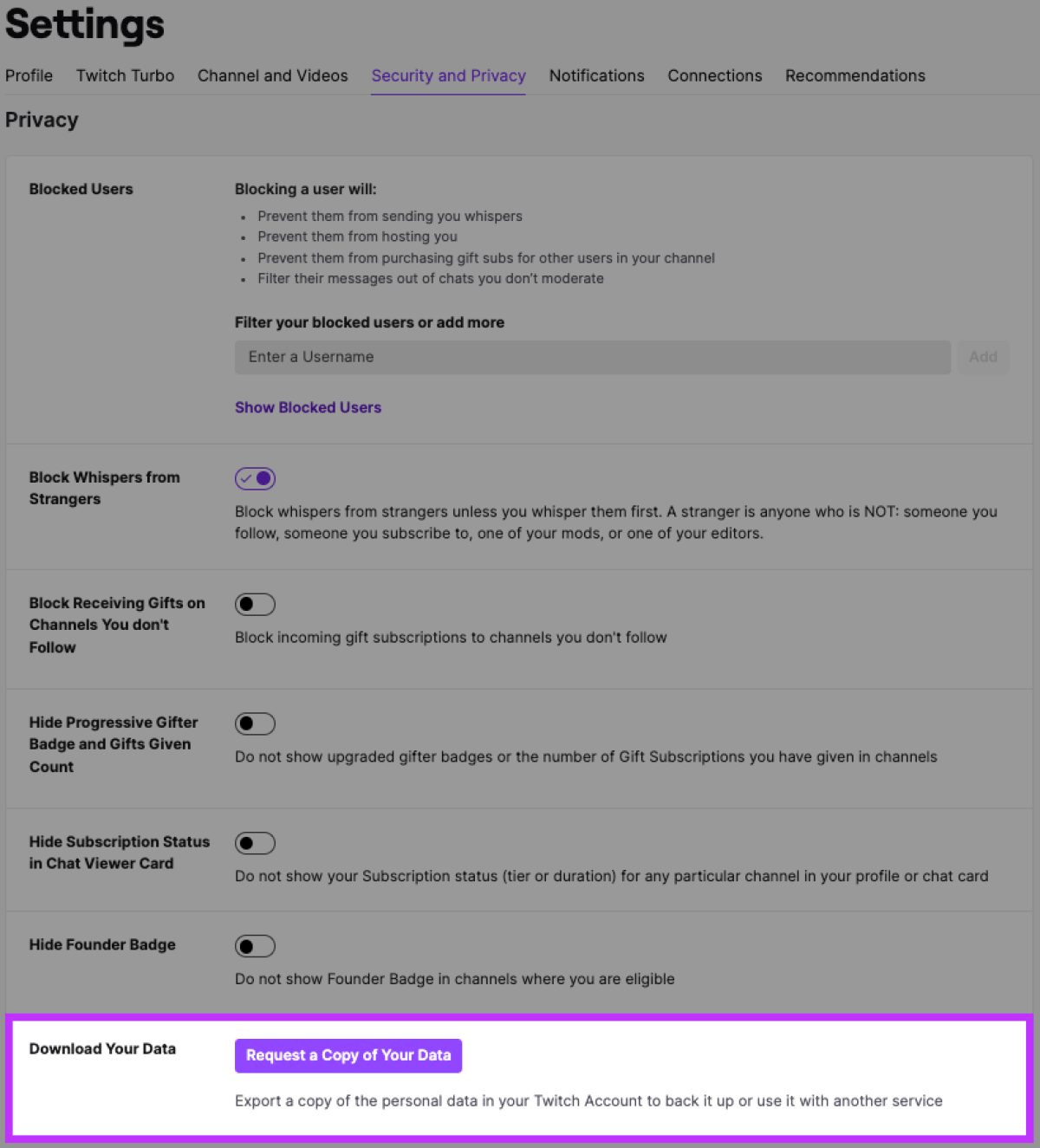
- Settings > Security and Privacy Open the section.
- Download Your Data In the field, select the option to request a data copy.
- Select the categories and date range you want to include in the report.
- Submit the request. Note that you cannot change your selection while the report is being prepared.
- When the Twitch notification arrives, return to the same page and download the data copy.
Twitch, reports within 14 days He states that he prepared it. Therefore, apply without waiting for your account to be deactivated. If you cannot access the account, you can request data from the support form. Whisper history is not included in the report. If you have more than one account, you need to create a separate request for each one.
The report you downloaded contains personal information. Do not save on a public computer or send to others. Use a restricted access folder on your own device; Keep video backup and data report separate. This way, you reduce the risk of accidentally sharing your account history when sharing a broadcast recording.
Subscriptions, Bits and account recovery
Within the scope of the age policy announced by Twitch for Türkiye, recurring subscriptions will not be renewed when the account is disabled. Refunds will be given for active subscriptions that extend beyond the deactivation date; gift subscriptions are excluded from this scope. The remaining Bits amount in the account will be refunded to the payment method used for purchase. These are statements regarding accounts disabled due to age restrictions; It does not say that the same refund will be made for every account deletion.
If you have a payment issue, contact Twitch purchase support with the transaction number, date, and amount. Adding invoices or transaction records to your backup folder makes it easier to later find out which payment belongs to which subscription.
Users disabled due to age in Türkiye When they turn 15, they will be able to ask customer support to reopen their account. and will be able to preserve previous usernames. However, permanently deleting the account is a different process. Twitch states that completely deleted accounts cannot be restored. You don’t need to delete the account to get a backup. First verify that you can open video files and reports, move important copies to a second secure storage area.
There is a separate appeal process for accounts suspended for violating community rules. Do not interpret the age disablement schedule as the date on which such a sanction will be lifted.