

Gemini no longer just reads the PDF file and extracts a summary. You can create a new PDF within the chat, open the file in preview, and make changes to the section you select. The editing tools announced by Google on October 29, 2026 work for PDF in both the web version and mobile application. The need to use a separate application to collect lecture notes, simplify an informational text, or make final corrections to the document you have prepared is decreasing.
Before we get started, there’s an important distinction to make: The flow Google shows is based on editing the PDF created from uploaded sources. Therefore, when uploading an existing file, do not assume that the original page design, form fields, or signatures will be preserved. The following steps can be followed to save the source document and prepare an edited PDF copy. Unlike the news we reported about Gemini’s new document editing experience, here we focus on the upload, change and final check stages.
Upload the PDF file or create it from scratch
Open Gemini on the computer and sign in with your Google account. The path specified by Google in the file upload instructions is in the message box. Add file > Upload file going through the options. Open the Gemini app on your phone or tablet Add file > Files Select PDF via . If the Files option isn’t visible on iPhone, swipe through the icons or open the Other Downloads section.
Write clearly what you want with the file. For example, you can say, “Create a new PDF using this PDF as a source. Do not change product names, dates, and numbers. Just make the introduction section more understandable.” If you are focusing on specific pages, include the page number and section title together. This makes it easier for you to check which text the request belongs to.
There is no need to upload files to start from scratch. You can write a prompt such as “Create a two-page meeting summary in Turkish from the notes below and prepare it as a PDF. Show the decisions and the work to be done under separate headings.” Google opened PDF production to all Gemini users in April. The October update expands the phase for reviewing and correcting the resulting file in chat.
Replace selected text and download final PDF
- Open the generated file. Go to full screen by expanding the PDF preview in the chat. First, check the headings, page order, and important information in the source text.
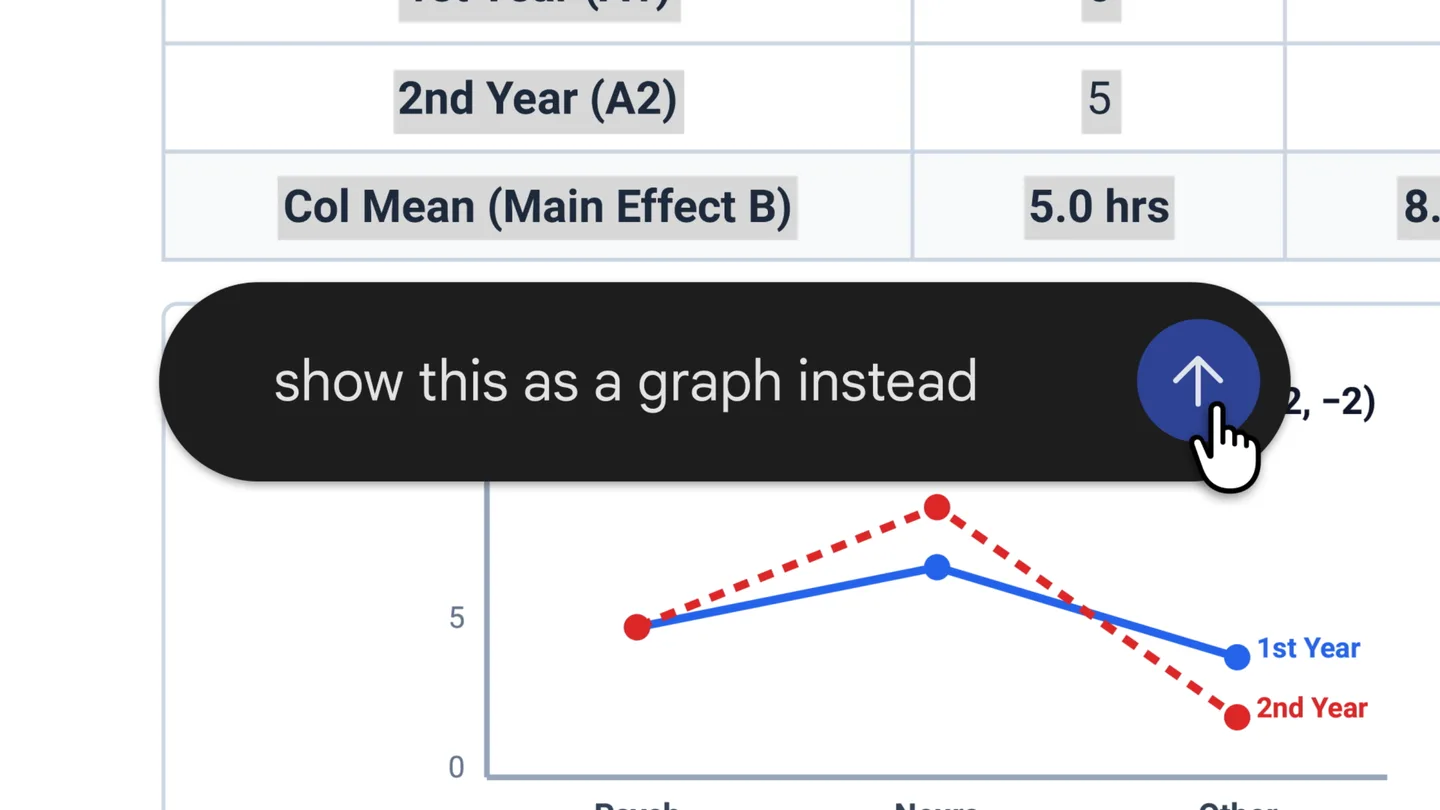
- Select the section to change. Mark the relevant text and ask Gemini for a concrete change. Use a specific request, such as “Reduce this paragraph to three sentences, keep the amounts and dates.” Google also supports editing by direct typing in full-screen view.
- Compare the result with the previous text. See if a condition or exception is lost during truncation. If you don’t get the result you want, describe the fix for the same section. Move forward with small changes rather than reprinting the entire file. For example, in a table containing prices, also check the currency and decimal point. When simplifying a paragraph, ask to retain phrases that change meaning, such as “at least,” “at most,” or “only.” It’s easier to do this check after each edit than to look for the error in the final file.
- Save the final copy. Use the download option of the file. According to Google’s documentation, most file formats can be downloaded to the device or transferred to Drive. After saving, open the PDF in the reader on your device; Re-examine Turkish characters, tables, links and page breaks.
Giving the file a distinctive name, such as “meeting-summary-edited.pdf”, will prevent you from confusing the source with the final version. Especially compare the names and numbers from the scanned pages with the original document. Just because the chat response appears correct does not mean that all pages of the downloaded file are correct. This final PDF should be the actual output you check before sending it to anyone else.
What are the differences on mobile, what are the limits?
PDF preview and editing is supported on web and mobile. Other new editing tools announced for Google Docs, Sheets, presentations, Markdown, TXT and code files are limited to the web version. Google states that it offers the innovation to all users in all languages where Gemini is available; There is no additional paid subscription requirement for this feature.
However, usage is not unlimited. A PDF can be up to 100 MB; Up to 10 files can be added to the same request, depending on their suitability. If you reach the file chat limit, you will have to wait for it to refresh. Since details can be omitted in long documents, working with a smaller copy that includes only the relevant section offers a more controlled way.
Check privacy setting for sensitive documents
Remove unnecessary personal data before uploading documents containing identity, health or customer information. According to Google’s privacy statement, when Hide Activity is turned on, chats and uploads are recorded in the activity and can be used to develop services and artificial intelligence models. Personal accounts have a temporary chat option; These chats are not used in model training but are stored for 72 hours.
Turning off Keep Event doesn’t mean instant deletion either. When the setting is off, new conversations are not used to improve models unless you send feedback; Storage period lasts 72 hours. Adding files from Drive requires Keep Activity turned on and a connection to Workspace. Follow your institution’s data sharing rules on a work or school account; Do not assume that personal account options are the same.