

In CarPlay, you can move apps, refresh the wallpaper, and organize widgets to suit your needs. The trick is knowing which setting to make on the iPhone and which on the car’s screen.
If you use the same applications on the car’s screen every day, you do not need to settle for CarPlay’s ready-made layout. Putting navigation first, removing applications you don’t use or enlarging the text can make the screen not only more stylish but also more understandable. Moreover, for most of these, you do not need to buy a new multimedia system. It is useful to first look at the settings offered by your current connection.
However, we should not confuse CarPlay with the iPhone’s home screen. Not every visual change you make on the phone is carried over to the car in the same way. Follow the steps below while the vehicle is parked in a safe place; Complete the last check before you start driving.
1. First find out which CarPlay setting is where
CarPlay personalization has two hubs: the CarPlay section on the iPhone and the Settings app on the car screen. You use the phone for app order and widgets, and the CarPlay screen for wallpaper and readability options. Knowing this distinction will prevent you from wasting time searching for the right menu.
Türkiye is among the countries where Apple supports CarPlay. However, the vehicle’s hardware, multimedia system, and iPhone’s iOS version may affect the options you see. Do not assume that all features will work on an imported vehicle or a retrofitted unit just based on the model name. Check the manufacturer’s description of that system. For details, you can check out the CarPlay compatible vehicles and Türkiye guide.
2. Bring your most used CarPlay apps to the front
on iPhone Settings > General > CarPlay Follow the route and choose your car. Behind Applications Open the section. Apple’s Turkish manual includes this section in some versions. customize He tells it by name. Here you can move the sorting handle next to an app by dragging it up or down. You can remove applications that have an uninstall button next to them from the list, and then bring them back with the add button at the bottom. It is not possible to remove every icon. You can see the layout you made on the main screen during your next CarPlay connection.
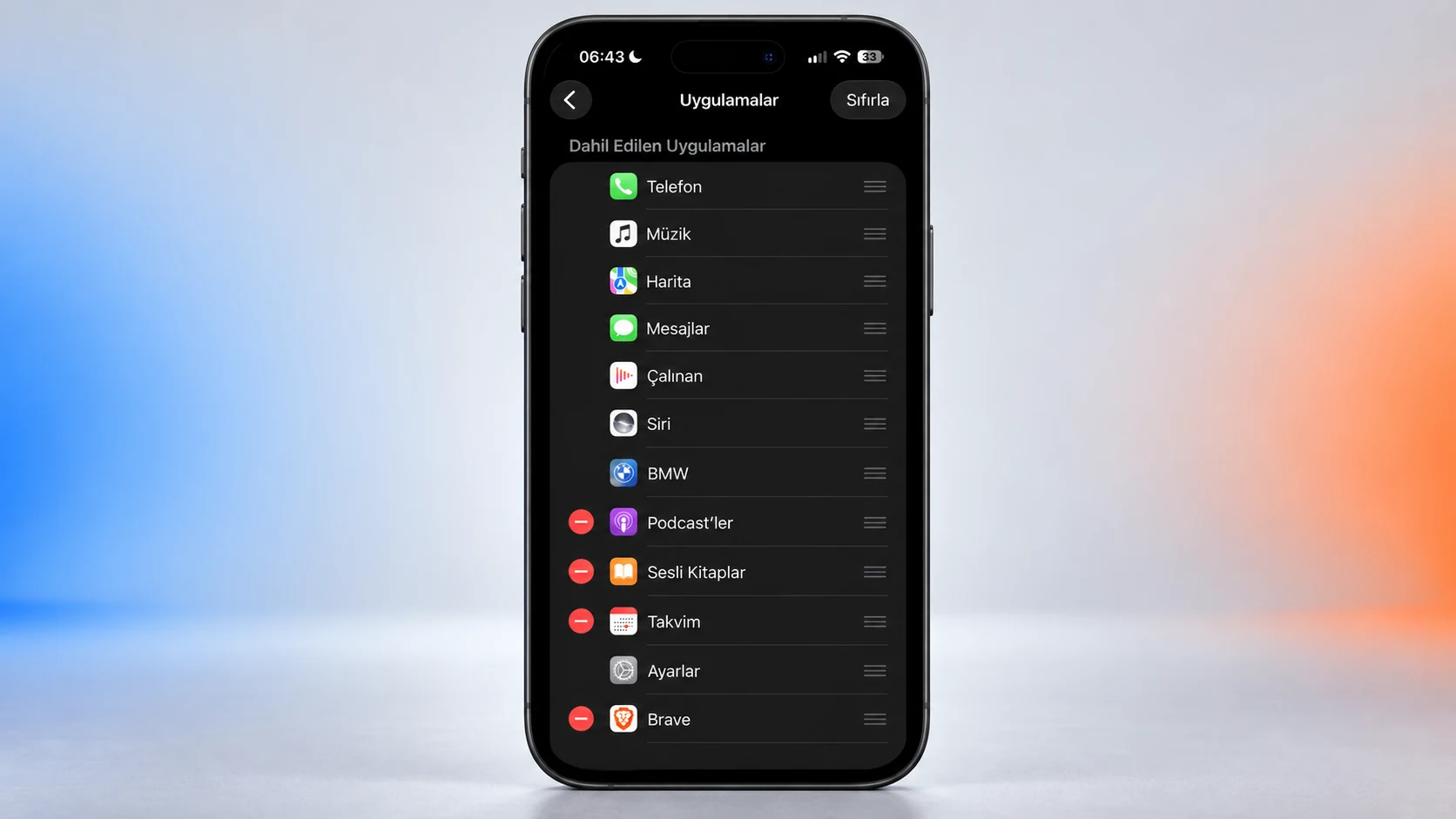
Think of the first page as a shortcut list, not a showcase. The navigation application, music service and phone function you use on your daily route can stay ahead. Move back the apps you open once a month. The aim here is not to fill the screen as much as possible, but to establish an order where you can find the icon you are looking for at a glance.
3. Consider CarPlay wallpaper and appearance together
On the car screen CarPlay > Settings > Wallpaper section and select one of the options offered. Instead of an area where you can upload your own photo, you will see the wallpapers offered by Apple. Changing the iPhone’s lock screen does not mean that you will get the same result here.
Settings > Appearance Also check the light/dark appearance options in the section. The dark appearance may be more suitable, especially for evening use. Don’t make your choice based solely on a nice-looking screenshot; Make sure that the icons and the background are easily separated from each other. After changing CarPlay’s appearance settings, return to the home screen and check that app names remain legible.
Apple also lists light, dark and transparent icon options for CarPlay in the iOS 26 specification document. Do not confuse these with an external icon pack. Consider the built-in options offered in the version you are using; Don’t assume every theme or icon solution for iPhone will apply to CarPlay.
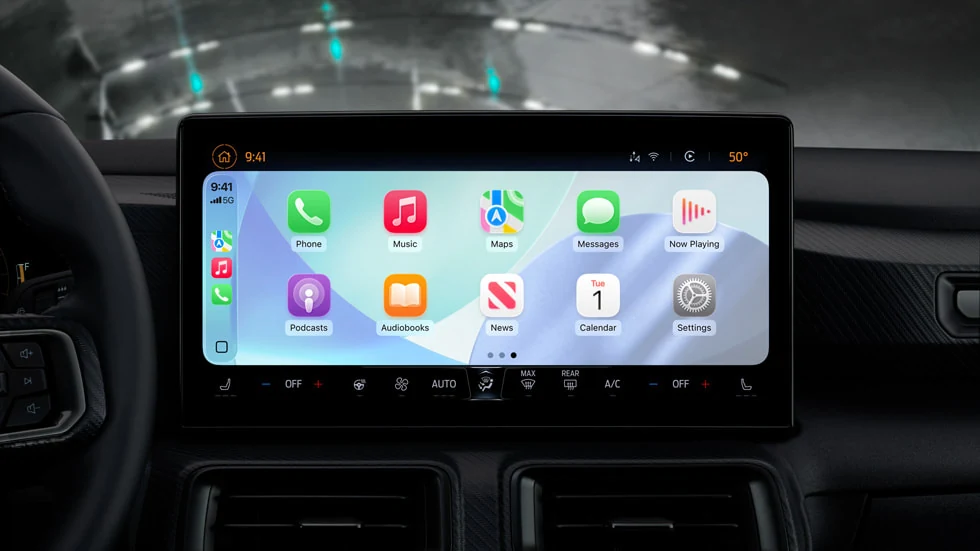
4. Fill in the CarPlay widgets with the information you’ll use
The toolkits that come to CarPlay with iOS 26 allow you to see information without opening the application. According to Apple’s developer statement, this area is located to the left of the Control Panel. But not every widget for every app has to appear here; The developer can exclude a toolkit that is not suitable for automobile use.
On iPhone to add Settings > General > CarPlay > your car > Widgets > Add Widget Follow your path. You can change the order and remove the ones you don’t want from the same section. Smart Rotation And Toolkit Recommendations You will also find your options here. The number of toolkit groups you will see on the screen depends on the car’s screen.
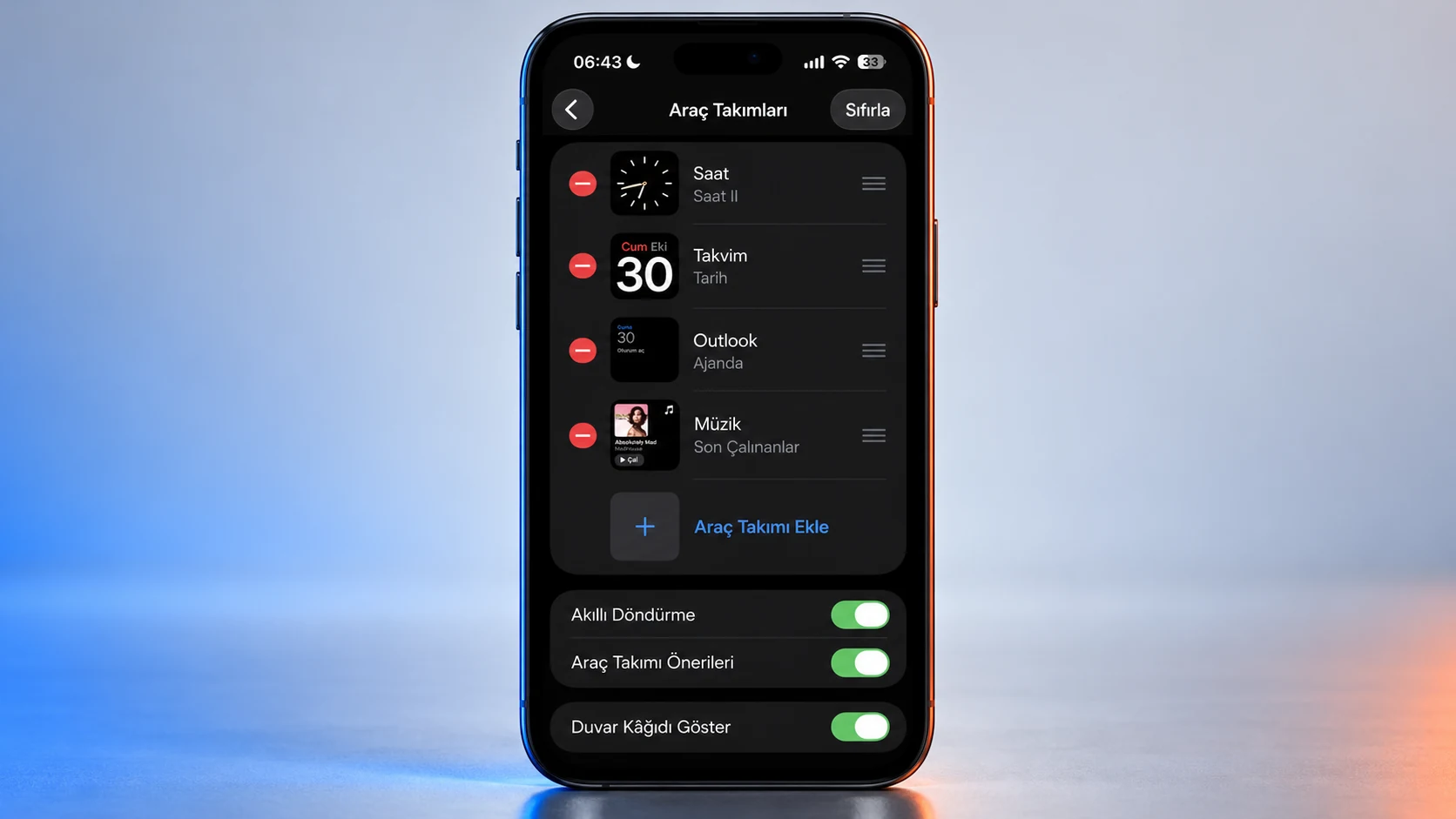
Choose a small amount of information to start with. If your calendar really guides your travels, bring it forward; Don’t use every widget just because it can be added. If you have difficulty finding what you are looking for when the layout is constantly changing, you can choose a more fixed layout instead of keeping automatic suggestions on.
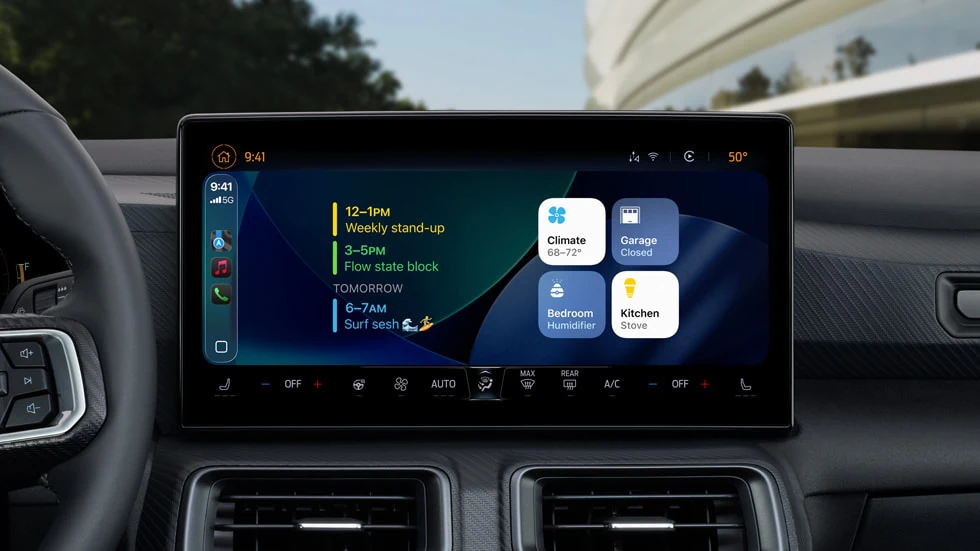
5. Enlarge text and reduce crowding in CarPlay
If you have difficulty reading text even if the icon order is correct CarPlay > Settings > Accessibility > Text Size Go to section. Select the appropriate size by looking at the previews. In the same accessibility menu Bold Text option may also increase readability. Users who have difficulty distinguishing colors Color Filters can evaluate the section. When choosing the accessibility setting that suits your needs, make sure the text and icons remain legible together.
Large print does not always mean the best result. First change it one step, then look at the screen from your normal sitting position. You’ll have an easier time understanding which choice works if you don’t change too many settings at once, while improving readability.
6. Based on the CarPlay application you will use in Türkiye
Apple’s Türkiye CarPlay page lists applications such as Spotify and WhatsApp, as well as third-party navigation applications such as Google Maps. Organize your first page not by this general list, but by the compatible apps you have on your phone and that you actually use. For example, it may be more practical to put your preferred map application first in your daily journeys than to constantly switch between two similar applications.
Do not think that all map details or application features in foreign promotional images are presented in the same way in Türkiye. CarPlay support and regional features of individual services are separate issues. Additionally, the customizations you make in standard CarPlay are not the same as the CarPlay Ultra experience, which changes all the car’s gauges and climate controls. You can find this distinction in our article on the differences between CarPlay and CarPlay Ultra.
Frequently asked questions about CarPlay personalization
Why isn’t the widget option visible?
Check the iOS version first, then check the widget support of that app. Widgets arrived with iOS 26; Searching for the same menu in an older version may not yield results. The layout that appears also depends on the vehicle display.
What to do if the layout change does not appear immediately?
Check in the next CarPlay connection as Apple recommends. If the problem persists, make sure you edit the correct car profile first; Do not try to reset all settings as the first solution.
Can I take a screenshot of my layout?
The path in the current guide is iPhone > Settings > General > Screenshot > CarPlay Screenshots. After turning on this option, take a screenshot on iPhone with CarPlay connected. Check private information like address, contact name and notification before sharing.
By organizing the application order, widgets and readability together, you can make the CarPlay screen more suitable for your daily journeys. Complete the settings while parked and check the result at the next connection.