

If you only change your ASUS router’s settings when you’re at home, you may not need the administration panel to be accessible over the internet. In this case, you can control web access via WAN and remote connection from the ASUS Router app if you are using it. What you’re turning off here isn’t your home internet connection, but certain remote management options of the router.
We have previously reported the security update released for ASUS routers. This guide focuses on where you should look in the settings. Let’s make the most important distinction from the beginning: Turning off remote management is not a substitute for installing the security update. You should also check the software released for your model.
1. First, enter the administration panel from your own network
Connect your computer to the router’s Wi-Fi network or Ethernet connection. In the browser’s address bar http://www.asusrouter.com in summer. If this address does not open, use your router’s local IP address; The default gateway address in your device’s network information may provide guidance. Do not assume that the same IP address is valid for every installation.
Log in with the administrator username and password. These may differ from the information you use when connecting to your Wi-Fi network. If you do not know the password, do not immediately reset the device just to change this setting: connection information from the Internet service provider and current network settings may be lost. First contact the device installer or your provider.
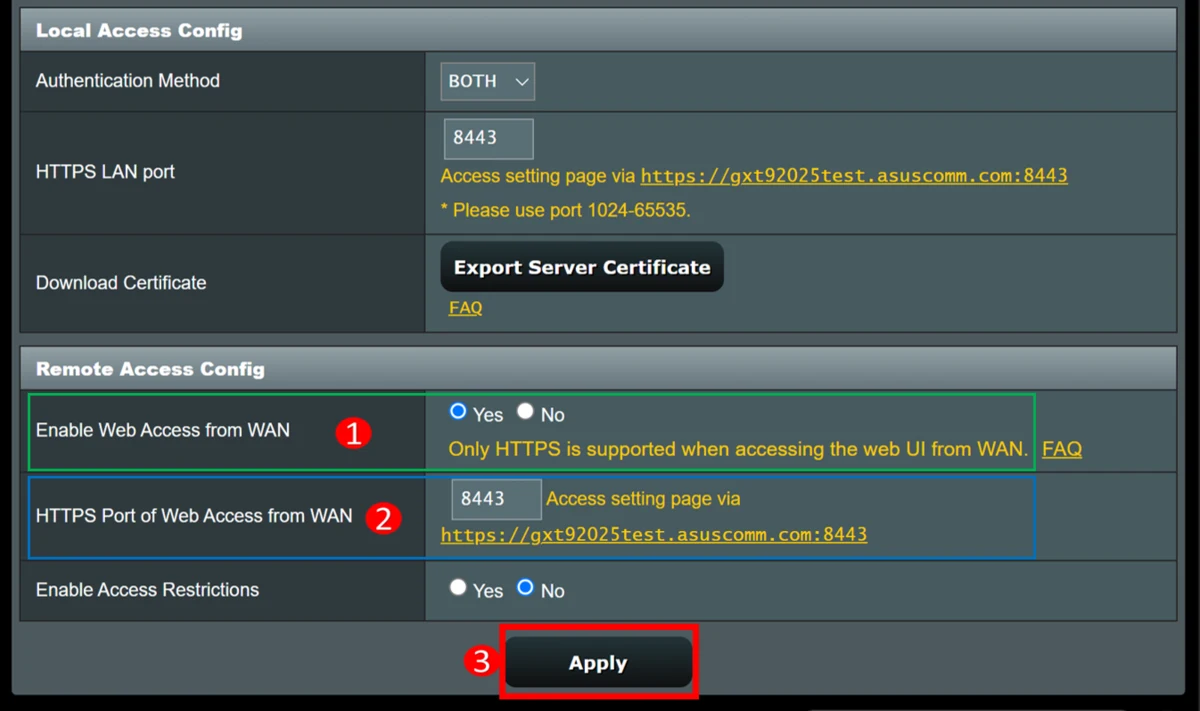
2. Turn off web access over WAN
In the web interface shown on ASUS’s current support page Administration > System > Remote Access Config Follow your path. Search for Management and System headings in the Turkish interface. Enable Web Access from WAN option No / No position and Apply Save with the button. Older interfaces may have an option to disable it in return.
Do not confuse the setting here with the option that enables internet connection in the WAN menu. The aim is not to cut off the internet, but to close the access of the management panel over WAN. After saving, reopen the same page and check that the selection is preserved.
3. Check remote connection in ASUS Router app
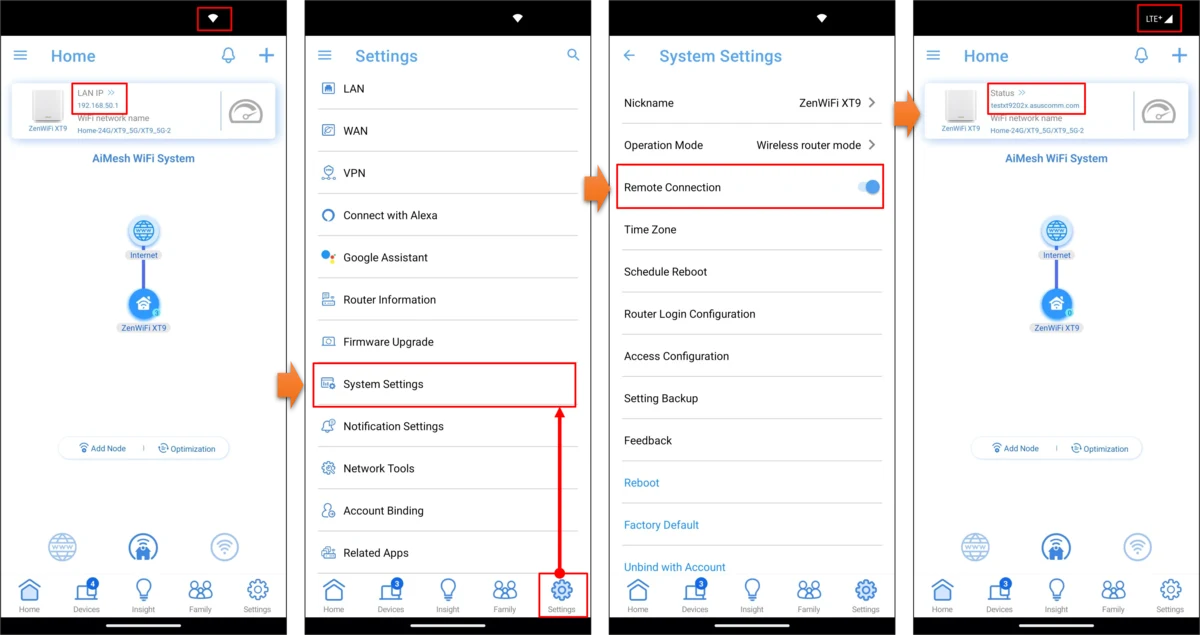
If you are using the ASUS Router app, connect your phone to the router’s own Wi-Fi network. Settings > System Settings > Remote Connection Turn the switch on the path to the off position. Turkish menu names may vary depending on the application version; Look for Settings, System Settings, and Remote Connection.
Just because you have checked the selection in the web panel does not mean that you do not need to look at the status in the application. Review both interfaces. You do not need to create a new DDNS address or establish external access just for the shutdown process.
4. Find out the version of the installed software
In the web panel Administration > Firmware Upgrade Open the section. On this screen in ASUS’s update guide, you can see the installed firmware version and start the update check. Note the exact version number; Don’t judge it to be up-to-date just by looking at its first few digits.
Also compare the model name with the device label. The software of similarly named routers is not interchangeable. If manual download is required, only use the official support page for your exact model. In the ASUS Router application, you can check via Settings > Firmware Upgrade > Check Firmware Version. Availability of options depends on model and software version.

5. Complete the update as a separate process
If a new security version is available for your model, install it at a time when a brief interruption in internet connection will not cause problems. Do not cut off the power of the device during the process. After rebooting, check the version information and remote management preferences again. If no update is available, compare the model and version information on the official support page.
Even if remote management is turned off, there may be vulnerabilities in services or other components accessed from the local network. Therefore, do not consider private keys as proof that all security risks have been eliminated. A strong administrator password and up-to-date software remain important in addition to this control.
You can consider this check as part of regular maintenance of the home network. To avoid forgetting the administrator password, store it in a reliable password manager, note the installed version and check date. This way, you won’t have to re-investigate which device and which software you’re using the next security notice. Hide your network name, address information and account details when sharing screenshots.
Frequently asked questions
Will Wi-Fi continue to work when I turn off remote management?
Yes. Turning off the management options we explain here does not mean turning off the Wi-Fi network or normal internet use.
What should I do if this option does not appear in the menu?
Model, operating mode and service provider specific software may change menus. Check the ASUS manual for your device; Do not apply the screen of another model exactly.
Should I install the version in the screenshot?
No. The images show the location of the menus. You should determine the version you need to install from the current official support record of your model.