

You don’t have to copy documents one by one when switching to a new Mac. Apple’s Migration Assistant helps you migrate the workload from your old computer via direct connection or from a Time Machine backup. Checking backup and application compatibility before starting the process reduces the problems you may encounter later.
If you’re planning to buy an M6 MacBook Pro or M6 iMac, it’s a good idea to prepare the old Mac before the new computer arrives. Migration Assistant; It can move applications, documents, user accounts and settings. Moreover, you can use it not only during the initial setup of the new Mac, but also after the installation is finished. The important point here is that the transfer does not delete information on the old computer and does not replace the macOS version of the new Mac. Therefore, you should separate the transportation process from the process of preparing the old device for sale.
1. Take an up-to-date Time Machine backup before Mac data transfer
Even if you’ll be transferring directly between two computers, it’s a good precaution to create a separate backup at the beginning. According to Apple’s Time Machine guide, after connecting the external disk, you can select your backup disk from System Settings > General > Time Machine. Apple recommends a disk that’s at least twice the size of the Mac’s storage capacity. For example, a 2 TB backup disk for a 1 TB Mac is more suitable for storing past versions.
If a deletion warning appears while adjusting the disk, do not confirm it immediately; Secure any other files inside first. If you are creating an encrypted backup, keep the password you set in a safe place. Then select Back Up Now from the Time Machine menu and check the date of the last backup. Just because the disk is connected does not mean that the current backup is complete.
Install available macOS updates on both Macs. It is not necessary for computers to use the same macOS version. Connect the MacBooks to power, turn on Wi-Fi, and keep the devices close by. If they’re on legacy Mac OS X El Capitan or earlier, connect the two computers to the same wireless network.
2. Open Migration Assistant on two Macs
If you are on the first setup of a new Mac, the data transfer option appears in the setup screens. If you’ve completed the setup, look for Migration Assistant in Spotlight. You can also find the application in the Utilities section in the Applications folder. The current macOS guide also includes System Settings > General > Transfer or Reset > Open Migration Assistant.
On the new computer, select Mac, Time Machine, or startup disk as the source. On the old computer, use the transfer to another Mac option. When the new Mac finds the source device, select your old computer. If the screens show a security code, verify that the codes match and then proceed.
3. Select the data and user account to move to new Mac
After calculating the space occupied by the data, Migration Assistant lets you choose between apps, accounts, and files. You can make more detailed selection by opening the arrow next to the category. For example, not moving a user account you no longer use or a large archive folder can prevent it from taking up unnecessary space on the new disk. When making your selection, look at the total size, not just the file names.
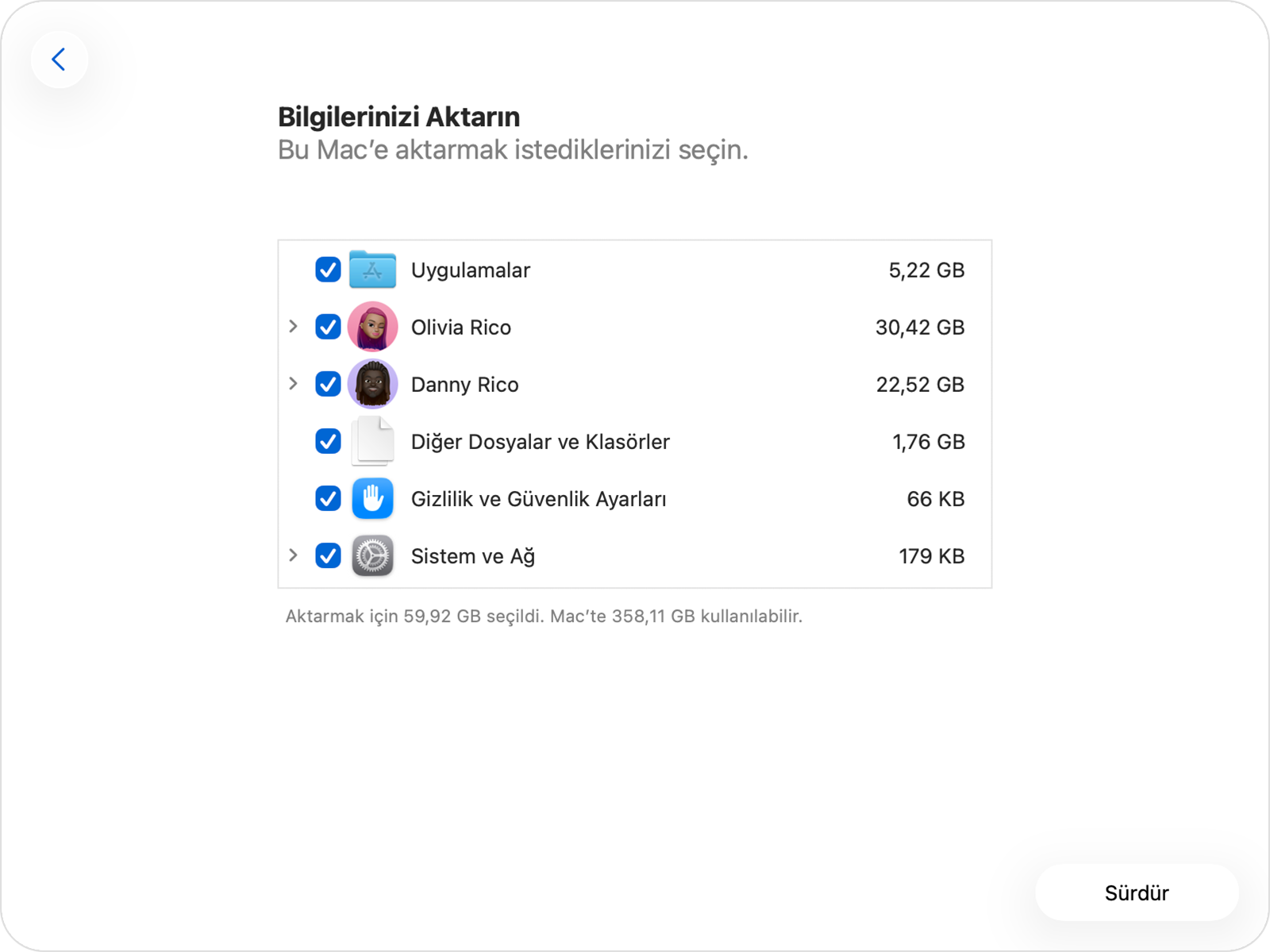
If the new Mac has an account with the same name, read the on-screen options carefully. You can keep the two accounts or transfer them to replace the existing account by renaming the old account. Do not use the replace option in a hurry, especially if you have started creating files on a new computer. Apple’s transmission description notes that large transactions can take hours and appear to stall at times. Check the status of the process instead of shutting down computers immediately as progress slows down.
4. Use Time Machine alternative for Mac data transfer
If you have a current backup, you do not need to keep the old computer on. Connect the backup disk to the new Mac, and in Migration Assistant, choose Mac, Time Machine, or startup disk. This time select the external backup disk as the source and then select the backup you want to use. It may take some time for the disk to appear in the list.
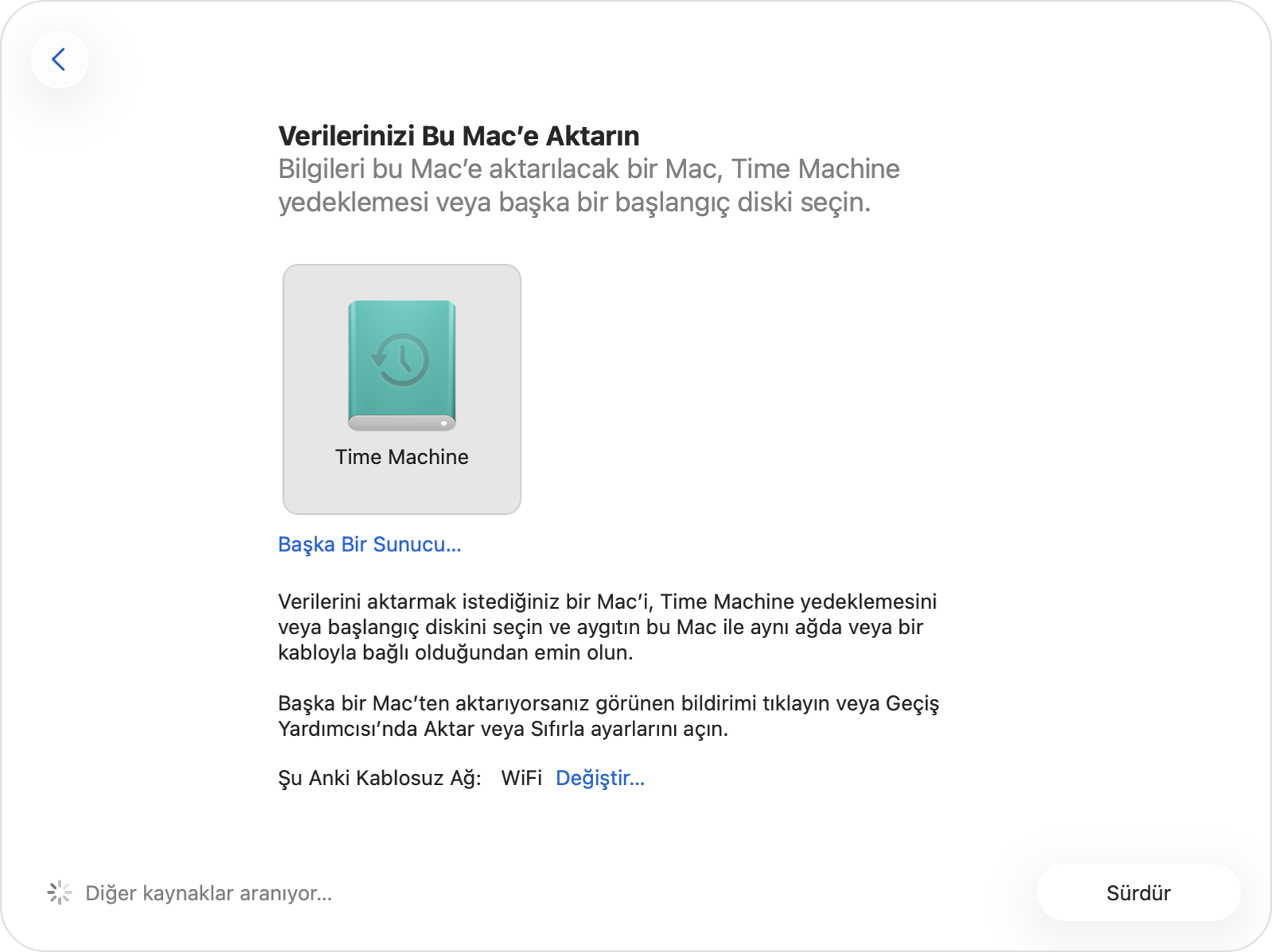
The next step in Apple’s guide to restoring from backup is to select accounts, applications and files. Pay special attention to the backup date here: A document you created after the last backup will not be included in that copy. If you only need a few files, you can choose Time Machine’s method of restoring individual files instead of moving the entire account.
5. Check Intel apps and add-ons on new Mac
Moving files doesn’t guarantee that every software you use will run smoothly on the new Mac. Select the app in Finder and open the File > Get Info menu. The Intel, Universal or Apple chip information in the Type field indicates which architecture the application is designed for. Check for the update compatible with the new Mac’s macOS version from the developer’s site; In music and video applications, include plug-ins in this control.
According to Apple’s current Rosetta statement, support for running Intel applications on macOS 27 continues. However, starting with macOS 28, Rosetta will be limited to only certain older games. So consider switching to the new Mac to upgrade to the Apple chip version of your important apps. Don’t settle for just porting the old version and opening it; Try out the features and add-ons you use in your daily work.
6. Do final check after Mac data transfer
Sign in to your new account; Check the Documents and Desktop folders, your photo library, and a few important projects. Take into account that applications may re-request license or account logins. The email account may also need to be set up again. Don’t reset the old computer without opening critical files and planning a backup of the new Mac.
If you will continue to use both Macs, edit the backup history accordingly. On the inherit old backup history screen, Apple recommends starting a separate backup for the new computer if the old Mac will be used. This way, you won’t mix up subsequent backups of the two devices when moving files.
Frequently asked questions about Mac data transfer
Does Migration Assistant delete files on old Mac?
No. The tool does not delete information on the source Mac; It also doesn’t change the new Mac’s operating system.
Can I transfer if I’ve finished setting up the new Mac?
Yes. You can open Migration Assistant via Spotlight or Applications > Utilities.
How do I move my files if I don’t have my old Mac with me?
You can connect the current Time Machine backup to the new Mac and select it as a source in Migration Assistant.