

To choose HomePod mini 2 audio output on Mac, you can open System Settings from the Apple menu and select your speaker from the Output list in the Sound section. If you just want to send music, the AirPlay menu of the Music app also works. The point you need to pay attention to here is to distinguish between the application’s output and the Mac’s general audio output. If you still hear the sound from the computer when you open a video in the browser, you should first look at the system setting. In this guide, you’ll find compatibility terms, the Control Center shortcut, and the path to follow when disconnected. The steps are based on the current macOS interface; The location of some controls may change in older versions.
In practice you will encounter two different usage scenarios. If you just want to send your playlist to HomePod while working at the desk, start with the AirPlay selection within the app. On the other hand, if you want to keep the sound on the same speaker while moving between the browser, video player, and other applications, select system output. To understand the result, you can stop the music and open a short content in another application. This way you can more easily distinguish which setting directs which sound. If you have more than one HomePod in the house, also note the device’s room name in the list. After making sure you have selected the correct speaker, adjust the volume.
Steps to change HomePod mini 2 audio output on Mac
Select system exit, check application volume and refresh the connection when necessary.
- 1
Check HomePod mini 2 and Mac compatibility
First, complete the HomePod setup in the Home app and check that the Mac and the speaker are connected to the same Wi-Fi network. Apple is announcing default audio output support for Macs with Wi-Fi 6E or newer wireless connectivity. On the speaker side, you can use HomePod mini 2 or second-generation HomePod; The stereo pair you create with two speakers of the same model is also included in this scope. Just because the first-generation HomePod mini appears in the AirPlay list doesn’t mean it supports the new default output feature. Apple’s relevant guide covers HomePod software 27.2 and later. Use the latest version of macOS that is also supported on your Mac.
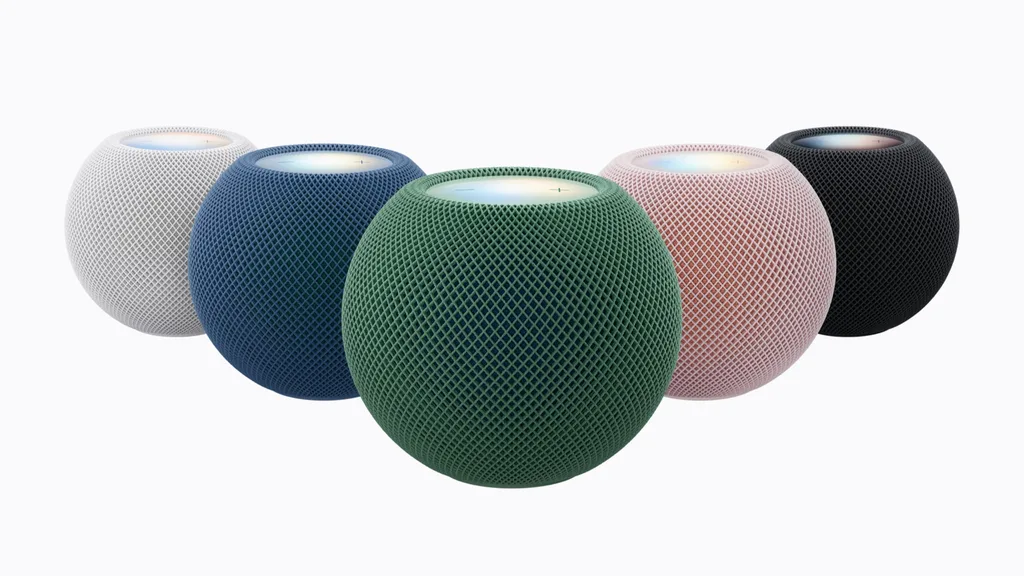
- 2
Select HomePod audio output from System Settings
Click the Apple menu at the top left of the screen, open System Settings, and select Sound from the sidebar. In the output section you will see the audio devices available along with the built-in speakers. Click on the name you gave HomePod in the Home app, then check the result by playing a short music or video. The Mac also shows the audio devices it can access via AirPlay in this list; It is normal for the connection type to appear as AirPlay. If there is no sound, increase the output level and check the mute option. And don’t forget the app’s own volume slider. If notifications are coming from a different speaker, review the output setting in the Sound Effects section. Also select the microphone you will use in conversations from the Login section.

- 3
Quickly switch to HomePod from Control Center
Instead of opening System Settings every time, you can click Control Center in the menu bar. Expand the volume control and select your HomePod from the output devices. Just moving the volume slider doesn’t change the output, you adjust the volume for the current device. If you switch frequently, you can use the option to add a control to the menu bar in Apple’s Control Center. Control-click the relevant control and select the add to menu bar command. When you want to switch back to Mac speakers, just tick the internal speakers from the same output list.
- 4
Manage app’s AirPlay output separately
If you just want to stream music, turn on the AirPlay button in the Music app and select the box next to HomePod. Apple uses this menu to route Music audio to external speakers. Look for the location of the icon around the playback controls. This selection concerns the Music application; For the sound you hear in another application, check its output setting and the Sound section on the system separately. You can make a similar choice in other applications that support AirPlay. Each application does not offer separate speaker selection; If you cannot find such a menu, use the system exit. To finish the transfer, return to the app’s AirPlay menu and select Mac.
- 5
If HomePod disconnects, reselect it
If sound isn’t coming from where you expect it after sleep, reboot, or network change, open the output list first. If HomePod appears, select it again and make sure the app resumes playback. Apple explains persistent AirPlay connectivity in the 27.2 release notes; It is still necessary to check the network connection. If the speaker isn’t listed, look for alerts in the Home app and HomePod’s Wi-Fi status. If the problem persists, open HomePod in the Home app, go to settings, and use the Restart HomePod option under Reset HomePod. You don’t have to remove the accessory from your home to restart it. You can see the direct reboot option in the stereo pair.
Frequently asked questions about HomePod audio output
Should I choose two HomePods separately?
If you are going to use stereo, first configure two speakers of the same model as a stereo pair in the Home app. Then select this pair in the Mac’s output list.
Is Bluetooth pairing required?
Audio is streamed via AirPlay. Instead of adding a Bluetooth device, select HomePod on the same network from the Sound or AirPlay menu in the app.
Why is there no sound even though the output has changed?
Control application volume, system volume and selected output individually. Also test whether the problem is in the file by opening another content.